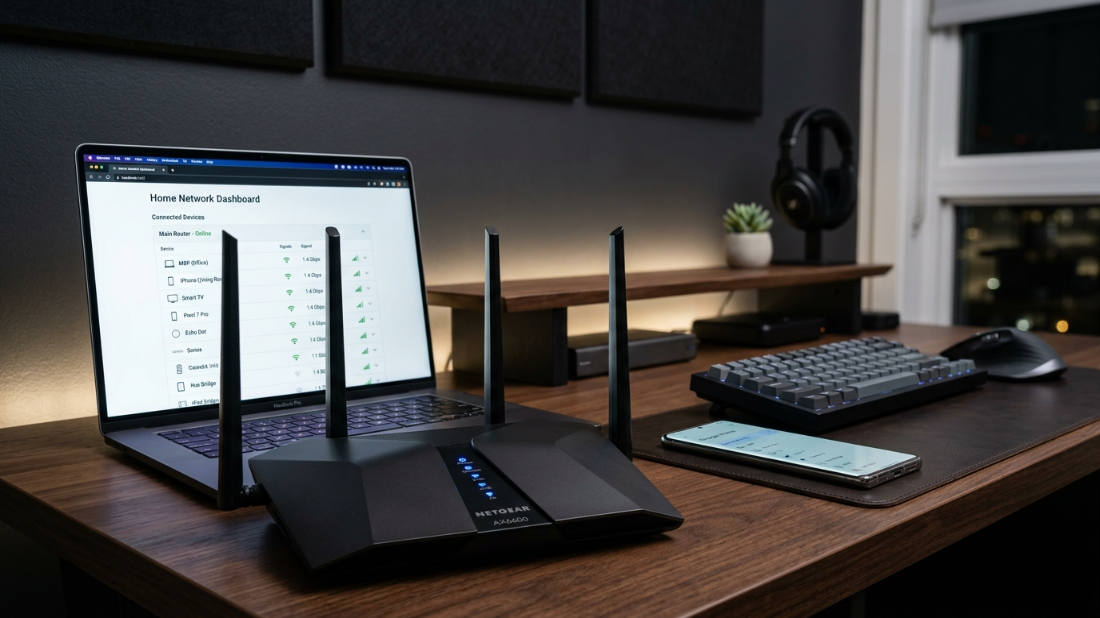
The presence of slow internet and random disconnections together with unknown devices on your network indicates that someone else is using your Wi-Fi connection. The majority of routers provide users with the ability to view all connected devices although most users do not utilize this feature. The investigation process does not require you to have any advanced technical skills. You can discover all devices that connect to your network by executing four straightforward steps which will also help you protect your network. The following methods provide users with effective solutions to monitor their system operation and gain authority over their system.
Log Into Your Router Dashboard
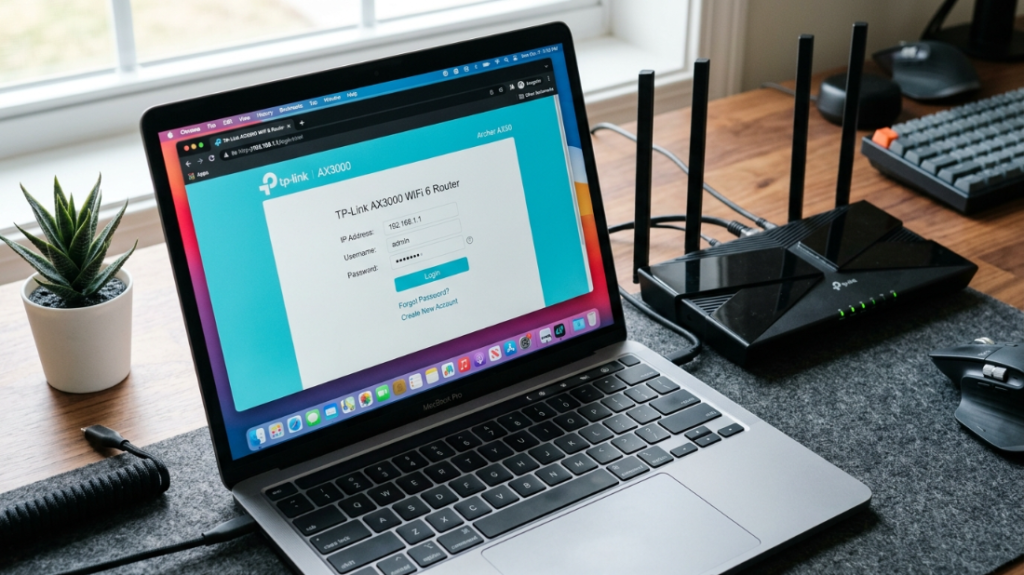
Type your router’s IP address which usually appears as 192.168.0.1 or 192.168.1.1 into a browser to access the login page. The dashboard displays all connected devices which can be accessed from one central location.
Look for “Connected Devices” or “DHCP Clients”
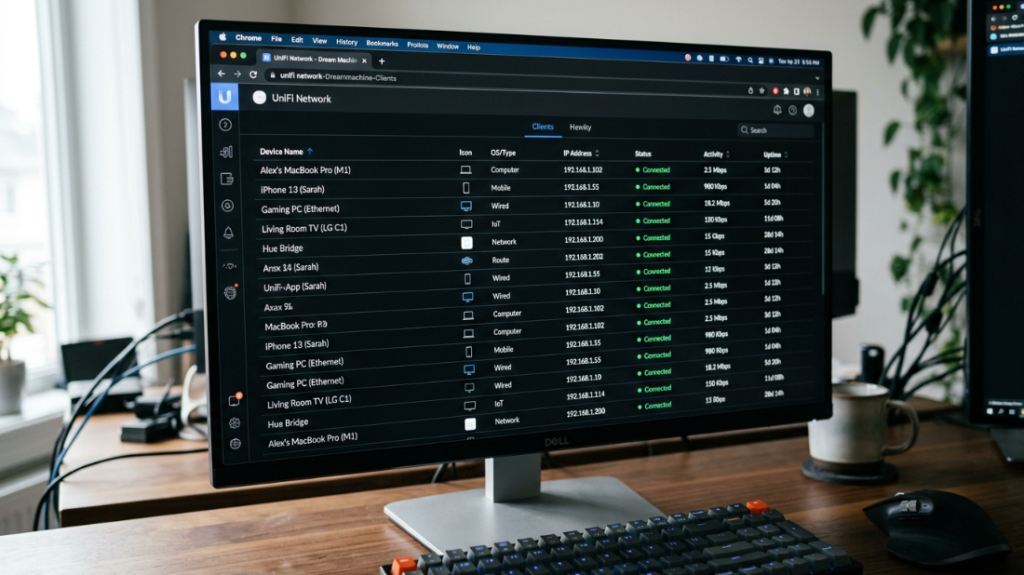
The dashboard contains sections which display the “Connected Devices” and “Attached Devices” and “DHCP Clients” information. The list displays all devices that are presently connected to your Wi-Fi network.
Identify Devices by Name and Type
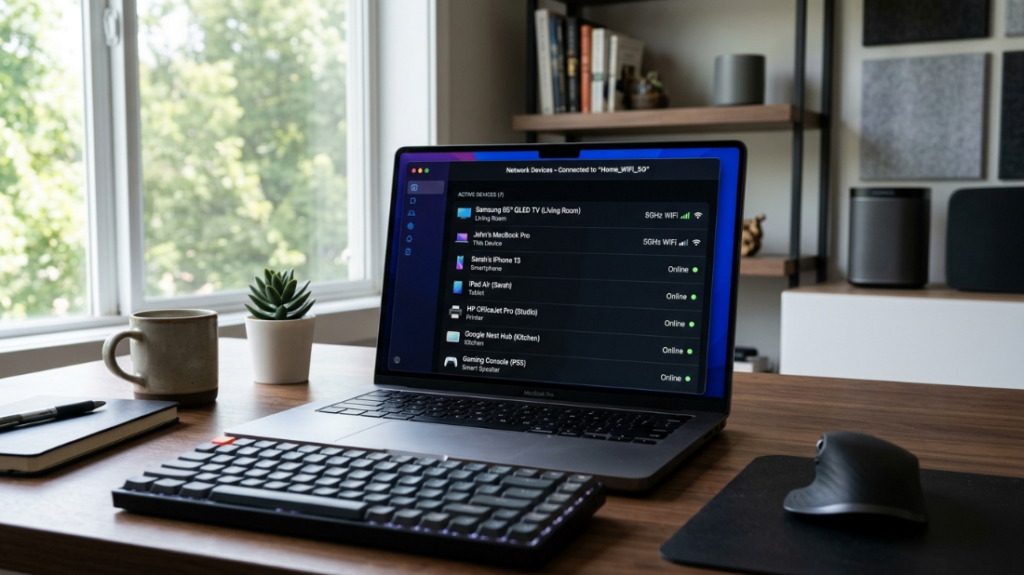
Devices typically display names that include either “iPhone” or “Samsung” or “Laptop” as their main identification labels. You need to compare this list against your personal devices to identify anything that does not belong to you.
Check MAC Addresses for Accuracy
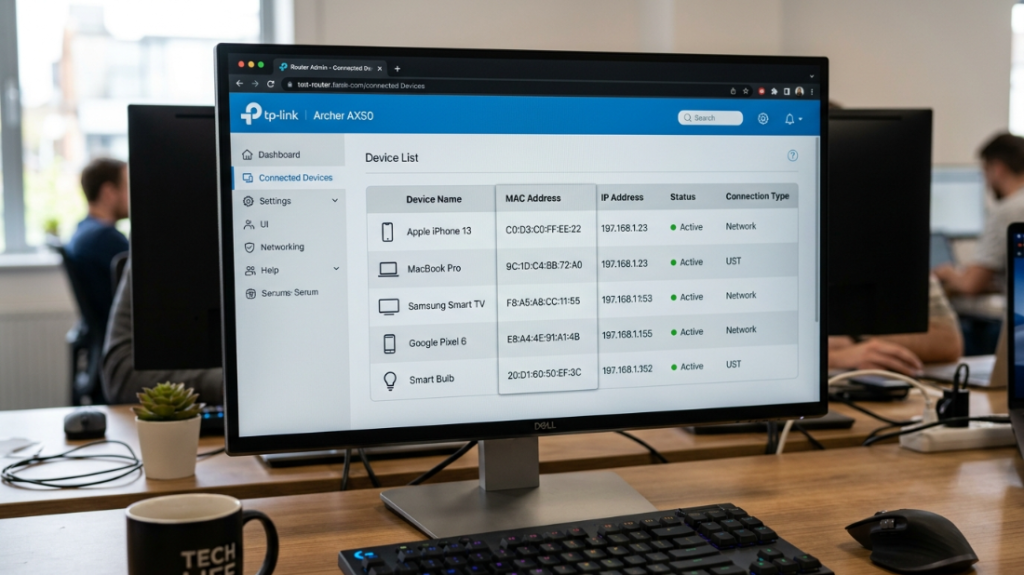
Every device has a unique MAC address. You can establish whether an unidentified device is present by matching existing devices with their respective MAC addresses.
Use a Network Scanner App
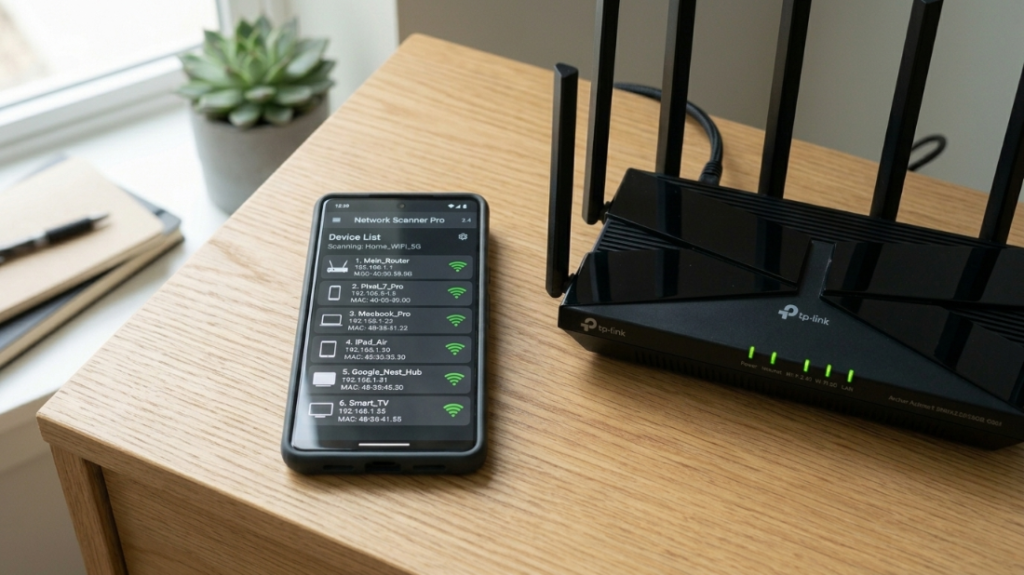
Fing and similar applications provide users with the ability to scan their Wi-Fi networks while presenting all active devices through an intuitive interface which shows both device type and manufacturer details.
Watch for Unknown or Suspicious Devices

It is important to screen unknown or suspicious devices to prevent unnecessary data information. The presence of unfamiliar devices which display default names signals a potential security breach which needs investigation.
Disconnect Suspicious Devices Immediately
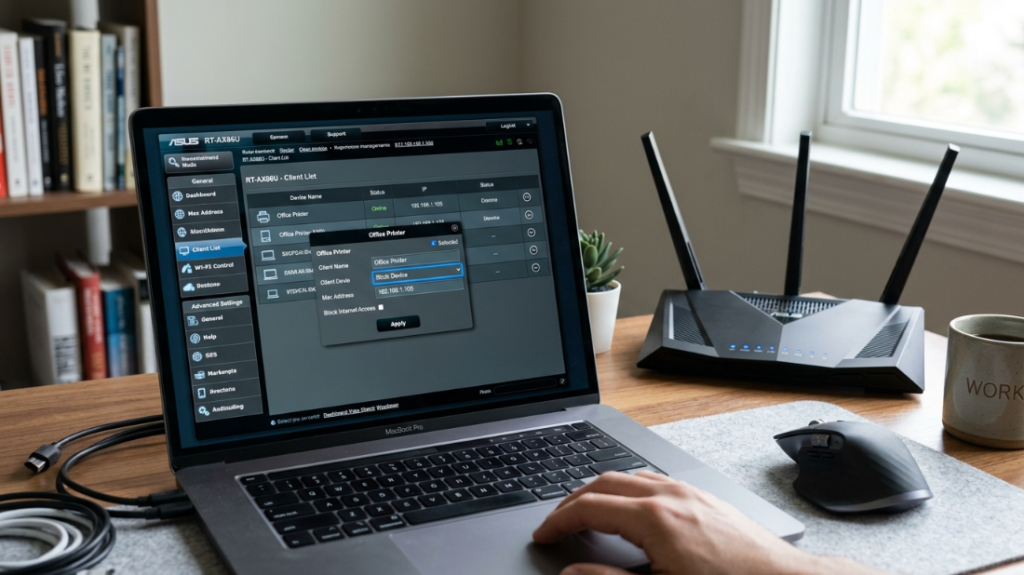
Routers provide users with the ability to block or disconnect devices which they can access through the router dashboard. The immediate removal of any unidentified devices will terminate all network access.
Turn Off WPS
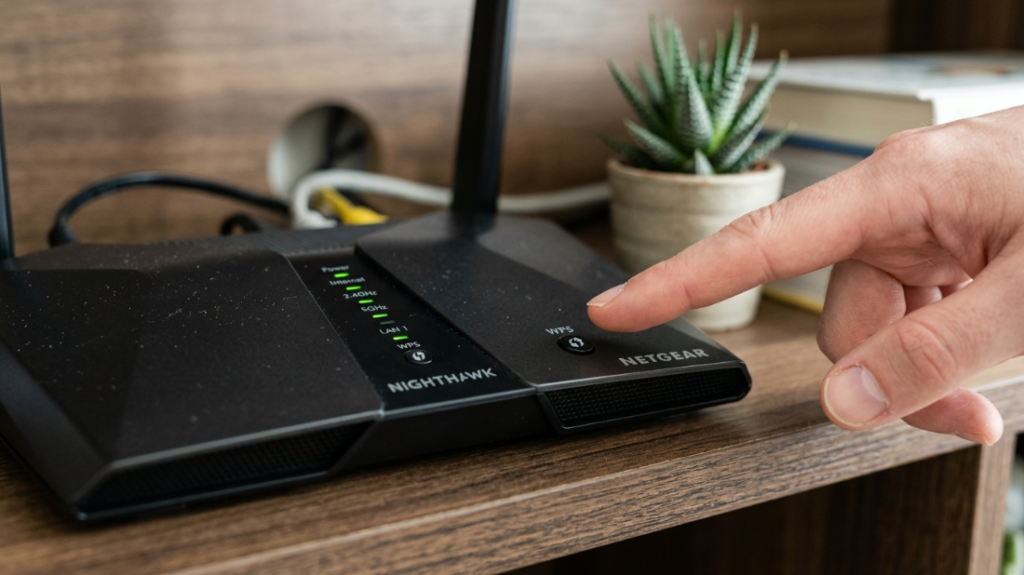
WPS (Wi-Fi Protected Setup) enables users to connect their devices to Wi-Fi networks through a simplified process. Press a WPS button on your router or enter a short 8-digit PIN. The technology provides assistance with connecting printers, smart TVs and Internet of Things devices.
