
Many people think of Microsoft Word only as a writing tool, but it quietly includes several features that handle tasks normally associated with dedicated PDF software. Over the years, Word has gained tools for editing, converting, reviewing, and protecting documents in ways that reduce the need for separate applications. For many everyday tasks, the program can perform functions similar to platforms such as Adobe Acrobat. These built-in options are easy to overlook because they are placed inside familiar menus. However, once discovered, they can simplify document work, reduce software clutter, and help users manage files more efficiently without learning complicated new programs.
Direct PDF Editing
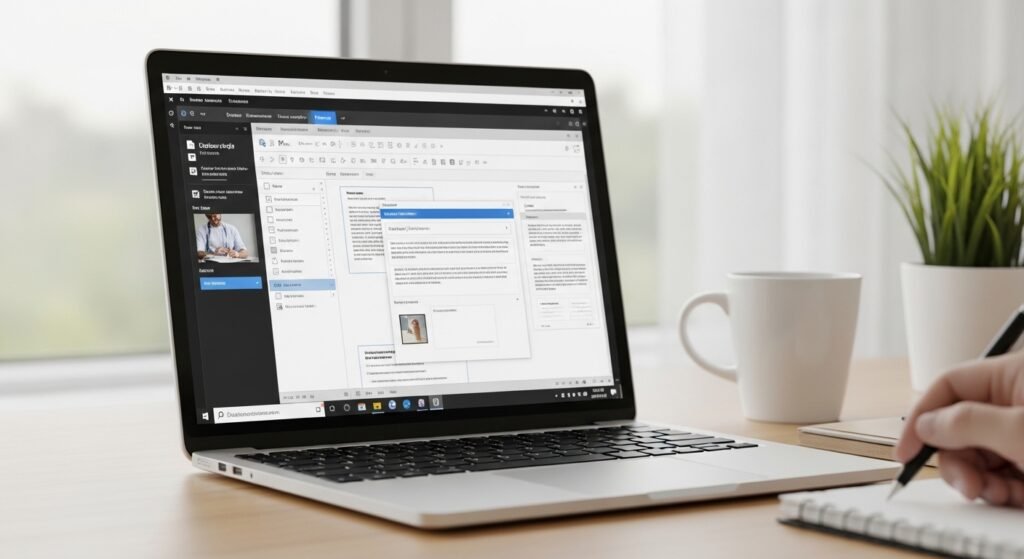
Many users overlook that Microsoft Word can open a PDF as an editable document. The layout converts into text boxes and images, allowing quick corrections and formatting adjustments without relying on separate PDF editing software.
Built-in PDF Export
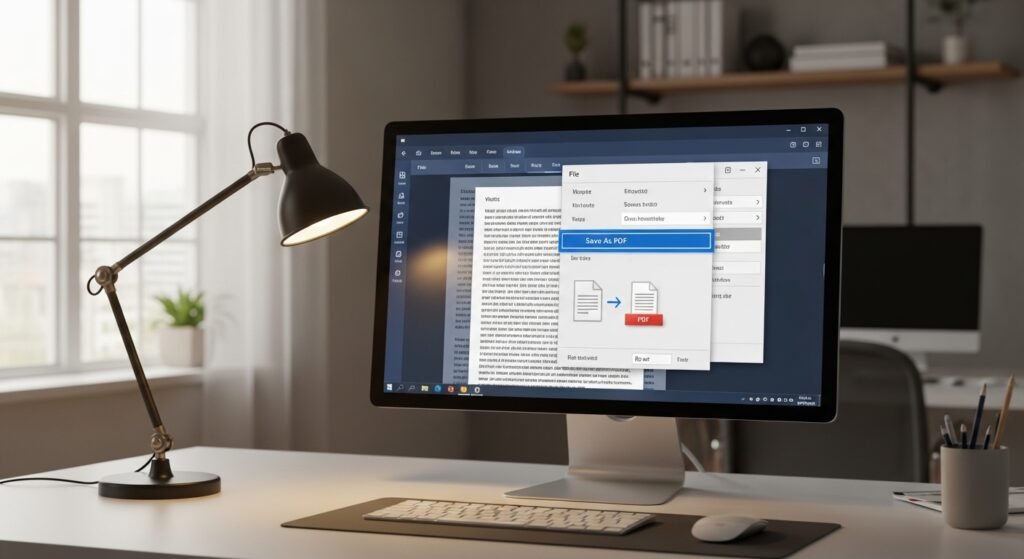
Word allows documents to be saved directly as PDF files. The export option preserves formatting, fonts, and images. This makes it easy to share professional documents while keeping the layout stable across different computers and devices.
Comment and Review Tools

The review panel in Word supports comments, notes, and change tracking. These tools allow teams to discuss edits inside a document, which removes the need for external PDF annotation software during collaborative document reviews.
Form Creation Capabilities
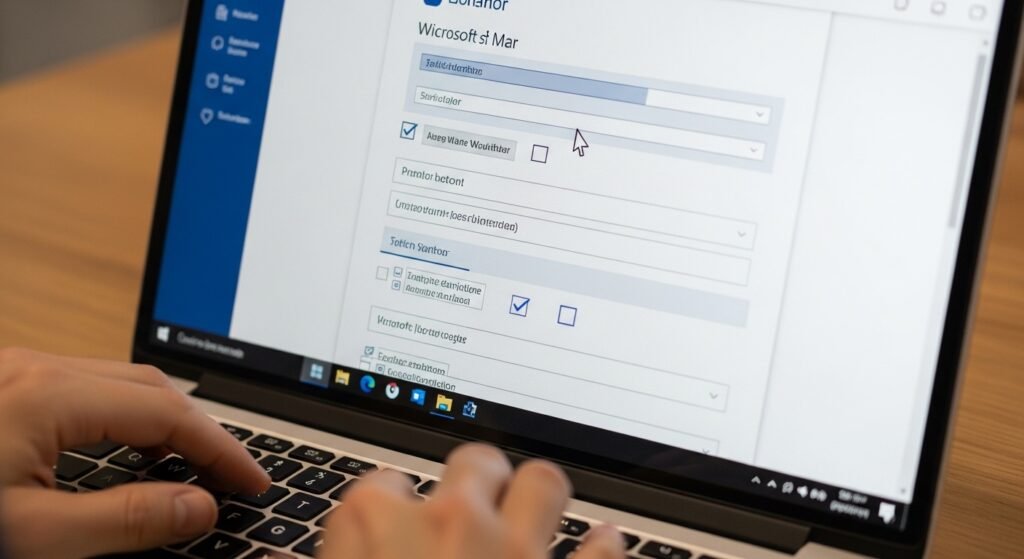
Word can create simple fillable forms using content controls. Text fields, check boxes, and drop-down lists allow readers to enter information directly. Once saved as a PDF, the form remains structured and easy to complete.
Digital Signature Support

Documents created in Word can include signature lines for approvals. After converting to PDF, these areas remain clearly marked for signing. This helps organizations manage agreements and approvals without relying on separate signature preparation tools.
Document Protection Options
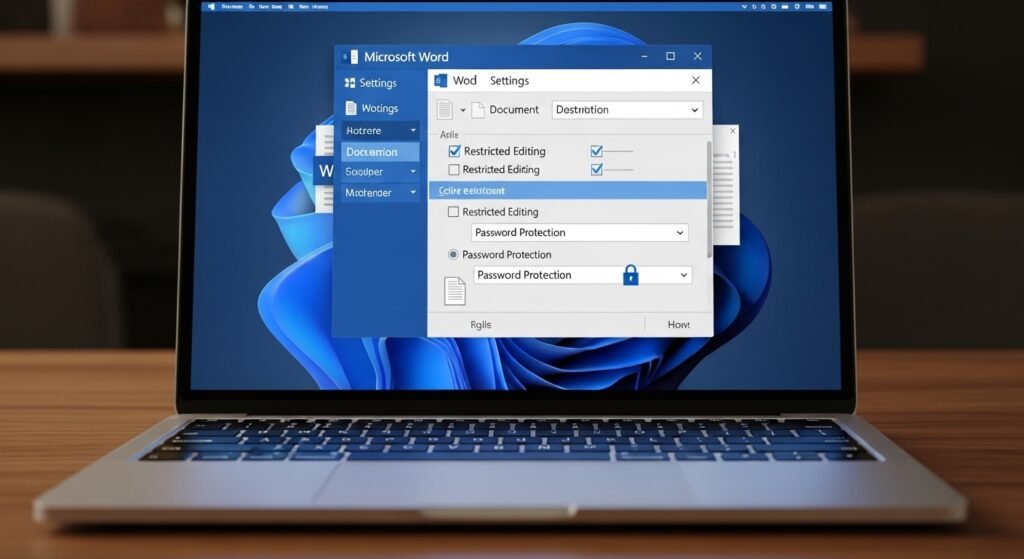
Word includes security settings that restrict editing or copying. Authors can lock sections, limit formatting changes, or require passwords. When exported to PDF, these restrictions help maintain document integrity and prevent unwanted alterations.
Built-in OCR Conversion
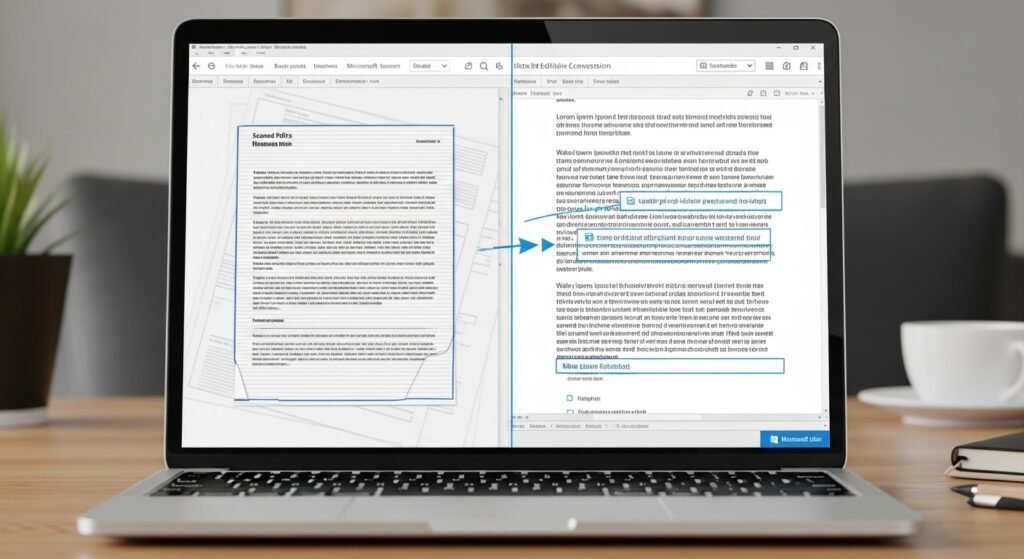
When Word opens certain scanned PDFs, it attempts to convert the text into editable content. This process resembles basic optical character recognition, allowing users to recover text from documents that originally appeared as images.
Layout and Design Controls
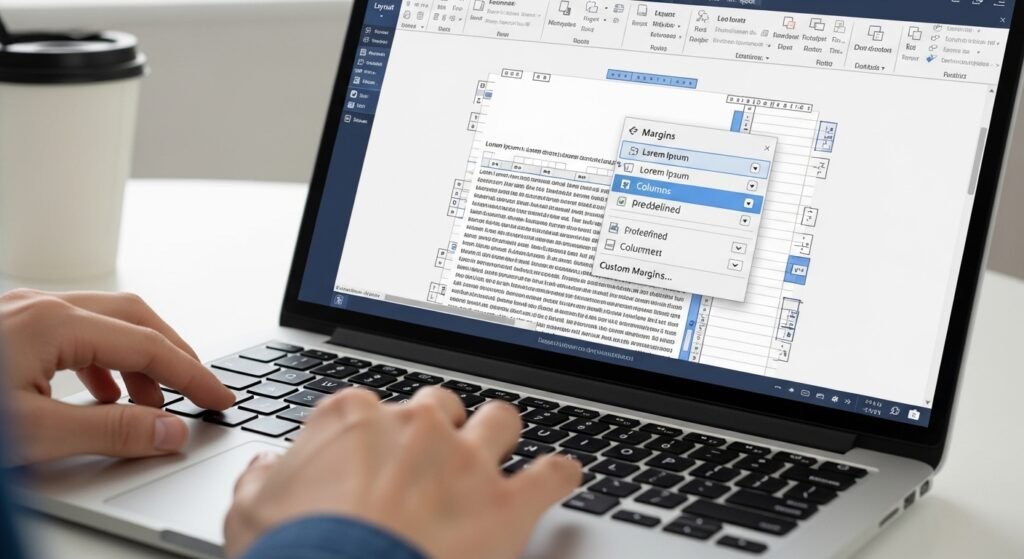
Word offers detailed formatting controls for margins, columns, fonts, and spacing. Adjusting these elements before exporting to PDF ensures the final document appears balanced and readable without needing adjustments inside another program.
Image and Object Editing
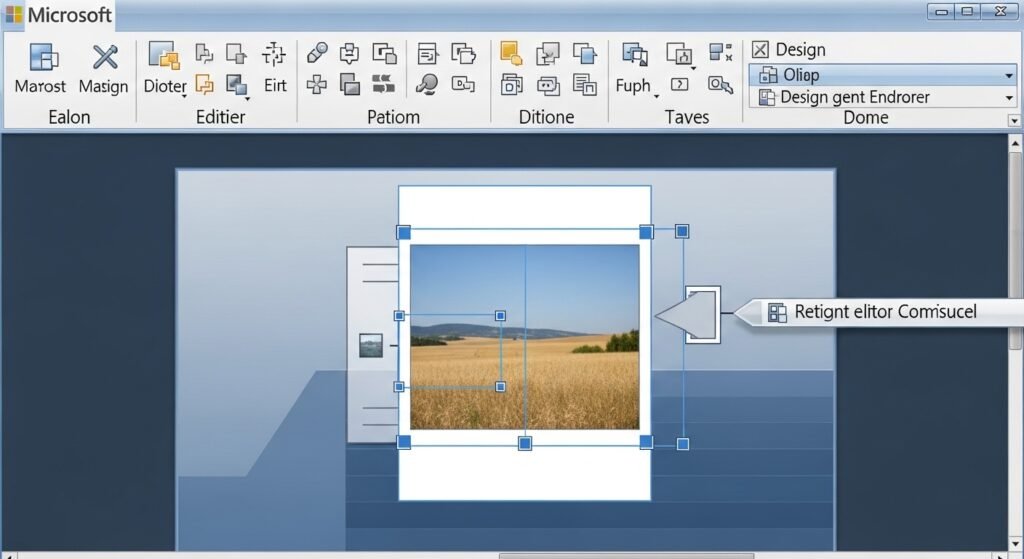
Images placed inside a document can be resized, cropped, or enhanced directly in Word. These editing tools allow users to refine visuals before creating a PDF, avoiding extra steps in separate image or PDF editing software.
Document Comparison Tool
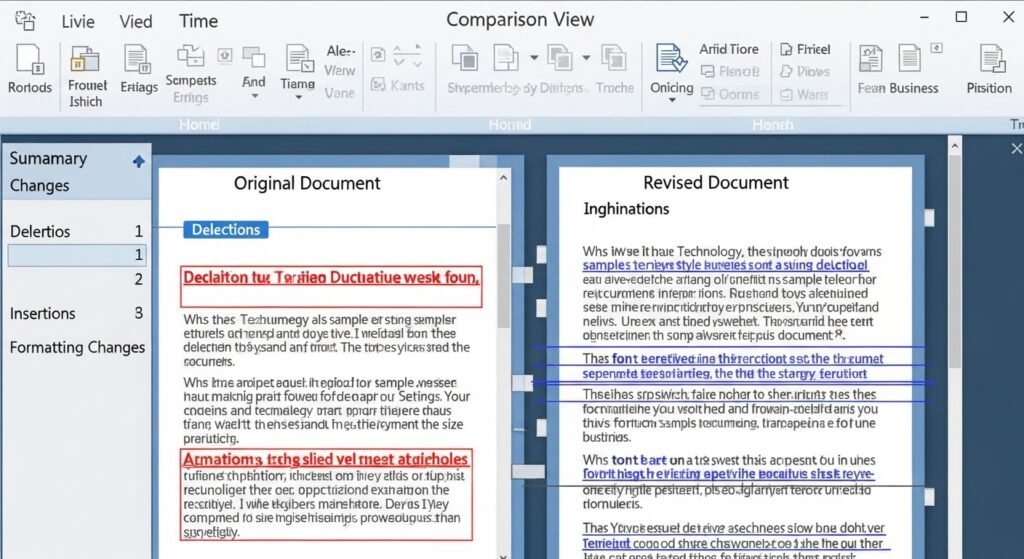
Word includes a document comparison feature that highlights differences between two versions of a file. This is useful when reviewing revisions of contracts or reports and can replace specialized PDF comparison utilities.
Seamless Cloud Integration
Integration with Microsoft OneDrive allows documents to be saved, shared, and accessed online. Once converted to PDF, files remain easy to distribute through cloud links, keeping collaboration organized without additional platforms.
