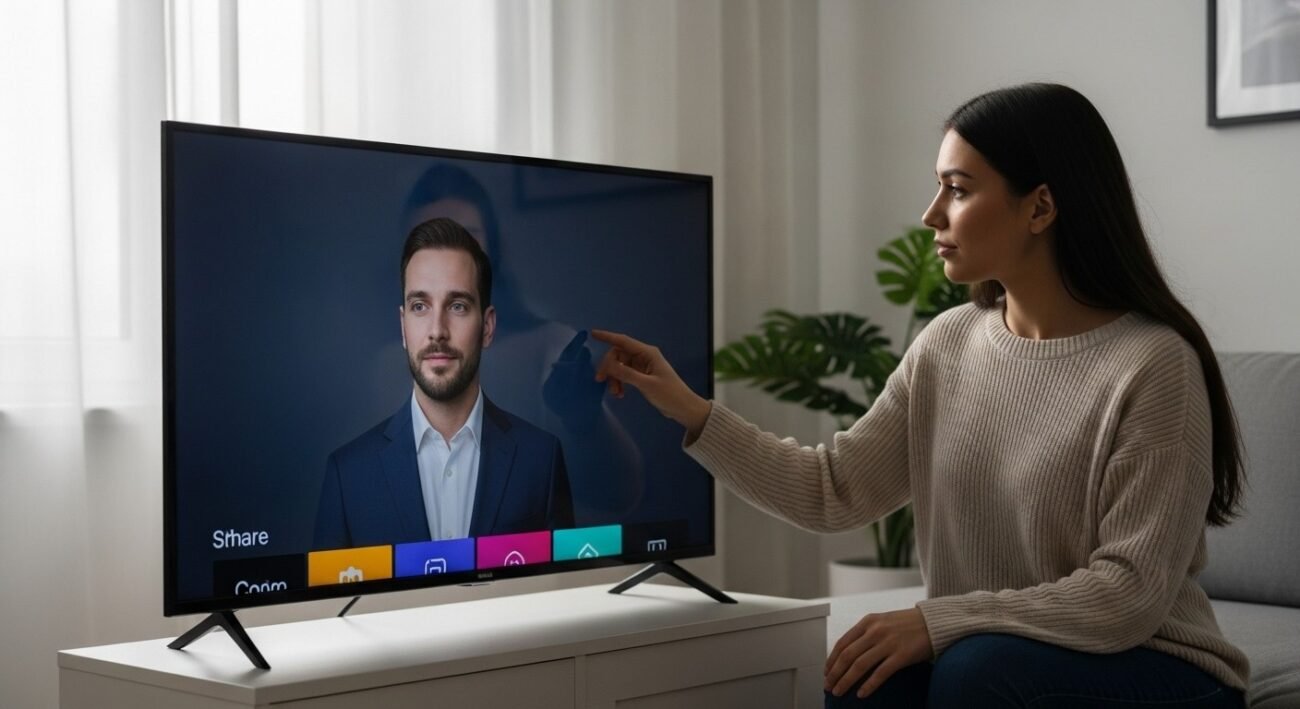
The majority of customers complete their Smart TV setup by connecting the device but they will never return to the settings section. The default settings used by factories do not establish ideal viewing environments because they present content with a white balance that retailers use to show products to their shoppers. The concealed switches enable you to boost visual quality yet they help maintain your private data protection while blocking the TV from tracking your watching patterns.
Disable “Motion Smoothing”
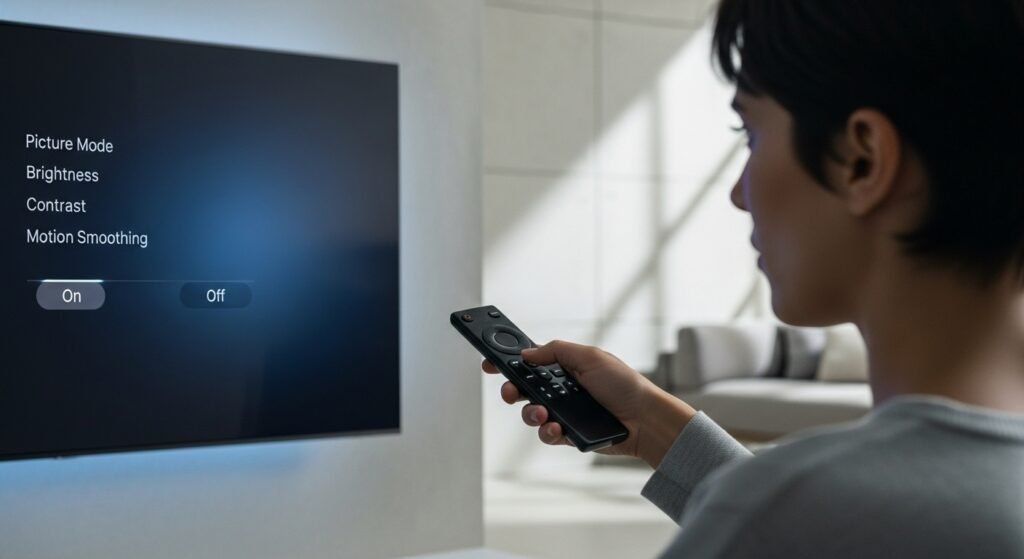
The Soap Opera Effect shows movement with unnatural fluidity through added fake frames in video content. The feature works in sports but it turns high-quality films into low-budget home movies. You should search for Motion Smoothing and TruMotion and Action Enhancement in your picture settings to turn them off because that will enable you to watch films the way directors meant them to be seen.
Turn Off “ACR” (Viewing Data)
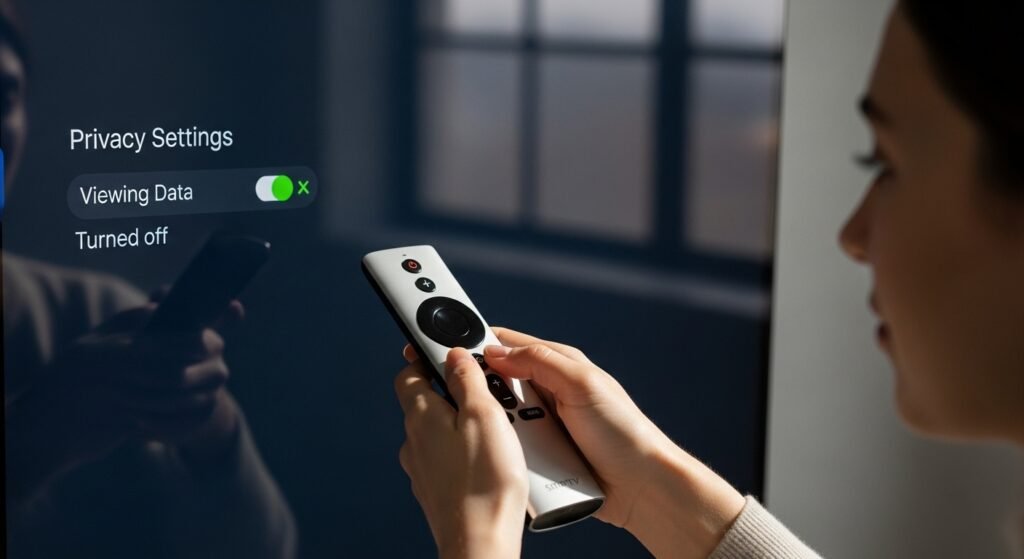
Automatic Content Recognition hidden setting enables the system to monitor your entire viewing history from Netflix to cable TV in order to deliver personalized advertisements on your other devices. The feature causes users to lose their privacy because it creates a huge privacy risk. The Viewing Data and Ad Tracking options can be opted out by users who access the Privacy section or Terms of Service menu on their television.
Switch to “Filmmaker Mode” or “Movie Mode”
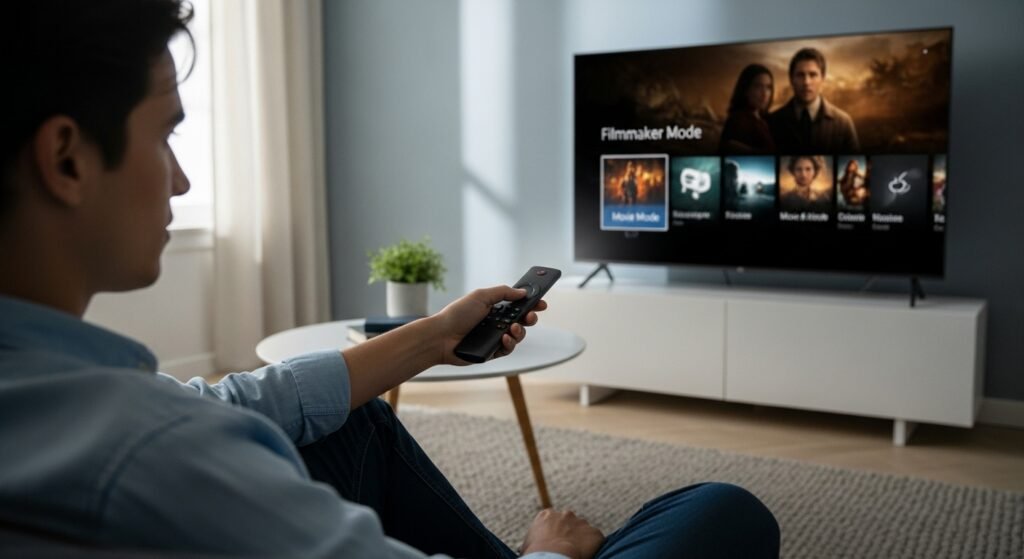
The typical television displays in Vivid mode or Standard mode which creates neon colors that appear artificial. The Filmmaker Mode or Movie Cinema mode delivers true-to-life color reproduction with accurate color delivery and contrast benefits. The initial experience appears dimmer but the system distributes light better for your vision.
Adjust the “Overscan” or “Aspect Ratio”
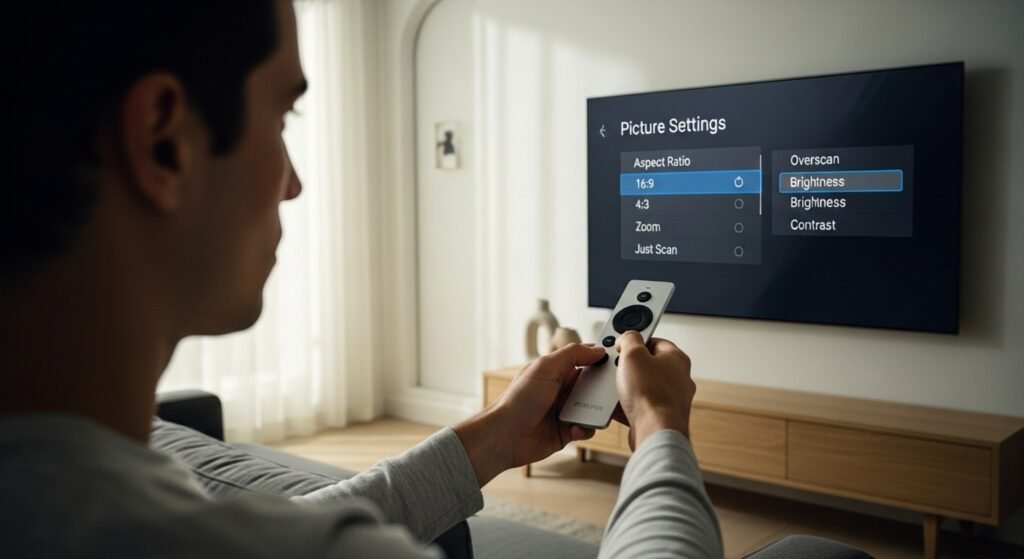
Most televisions use 16:9 mode as their default setting but this mode actually zooms the image in and removes the outer parts of the picture. The situation can cause bottom-of-screen text to become invisible. The setup requires the Just Scan feature or Screen Fit feature or Original setting to verify that all image content will be displayed on the screen.
Disable “Energy Saving” Mode
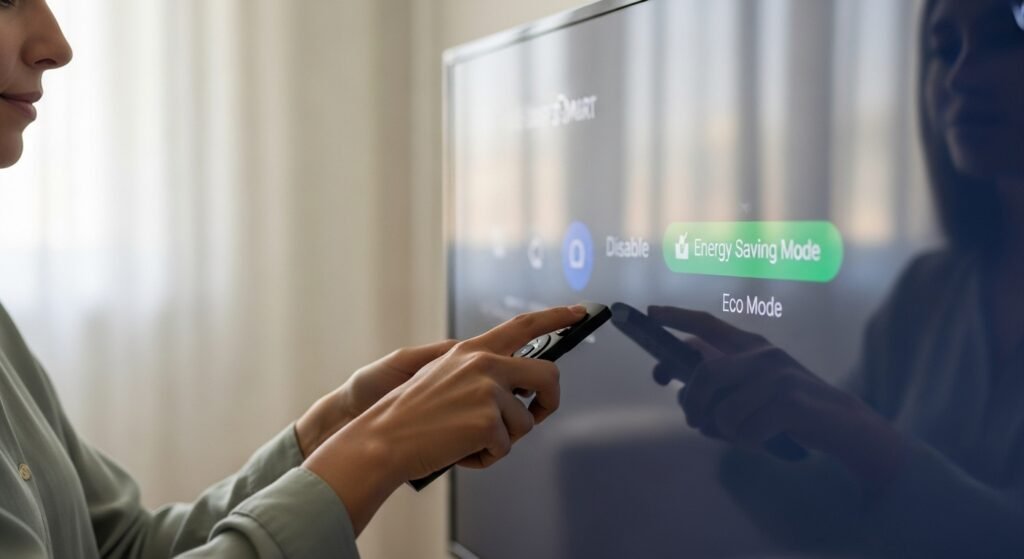
The Energy Saving or Eco Mode option appears environmentally friendly but it functions by dimming the backlight in response to ambient light conditions. The feature creates a display appearance that results in a blurred and lifeless screen. The television displays excessive darkness at maximum brightness because this setting functions as the primary reason.
Set “HDMI-CEC” to “On”
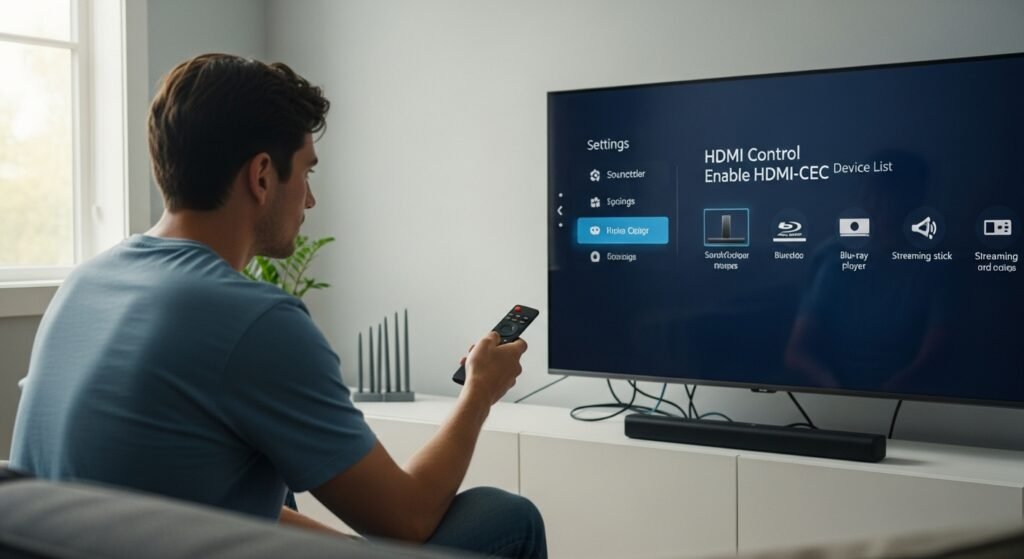
The feature enables your devices to communicate with one another. The feature allows users to activate their PlayStation or Apple TV which will then automatically turn on their TV while selecting the appropriate input. The company uses Anynet+ or Simplink or Bravia Sync to name the feature.
Rename Your Inputs
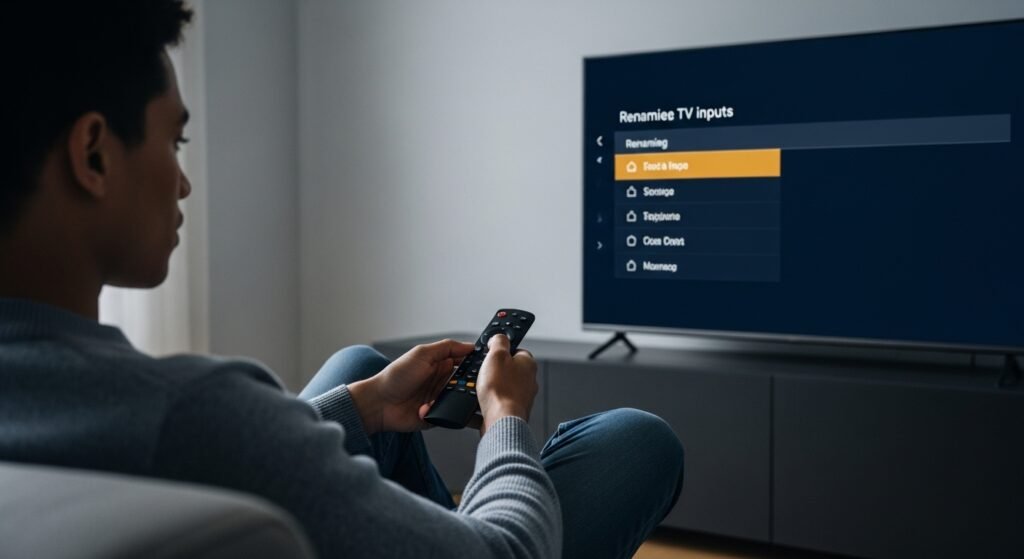
The Input Settings feature lets users select between HDMI 1 and HDMI 3 to determine their Blu-ray player status. Most televisions provide options to change existing names into Gaming PC or Cable Box or DVD. Families will find it easier to understand how to use the TV because of this small name change.
Enable “Game Mode” for Consoles
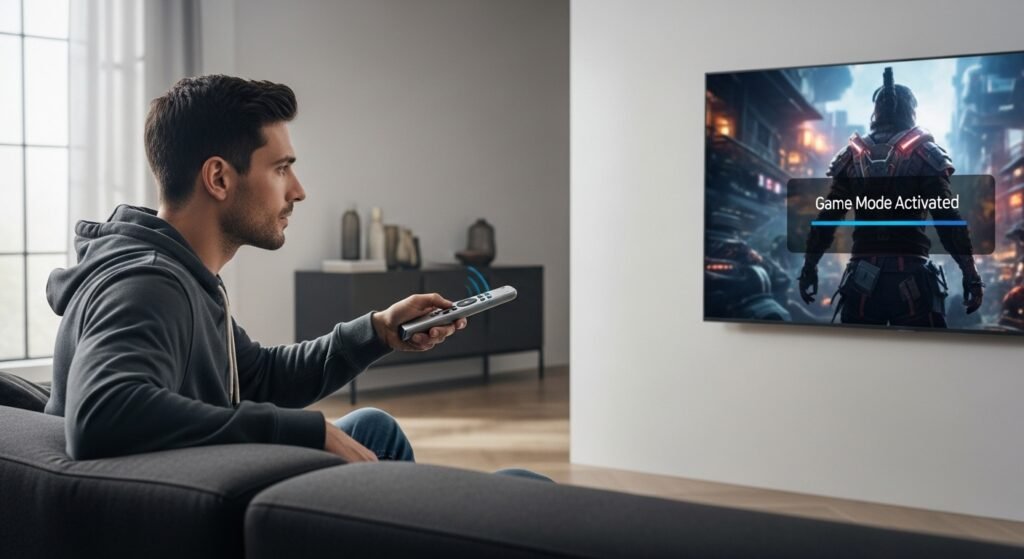
Video gamers who experience button delay should activate Game Mode. The setting enables gamers to achieve better gaming performance through faster reaction times because it disables all unnecessary image processing tasks.
Adjust “Gamma” Settings
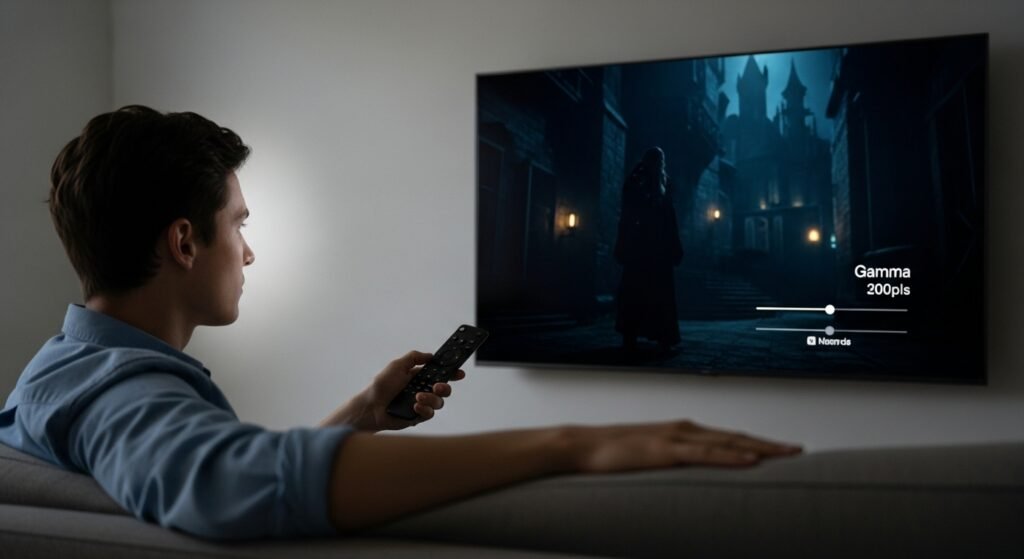
The dark scenes in movies transform into a solid black blob known as crushed blacks so you should adjust your Gamma settings. The Gamma setting should be adjusted to 2.2 which will reveal hidden details in dark areas while protecting the overall visual quality.
Update Your Software Manually
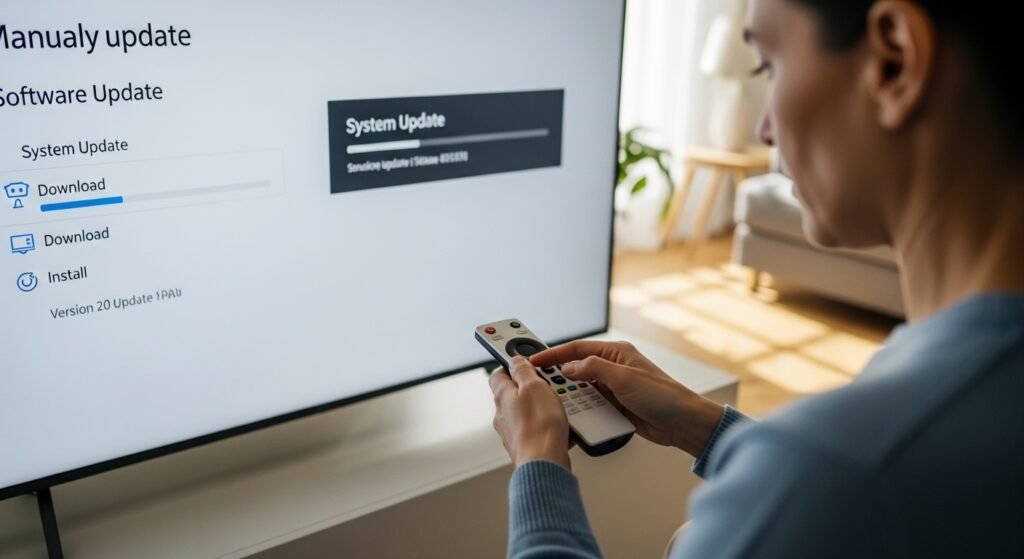
The Smart TV functions as a computer with a monitor display. The manufacturers deliver periodic updates which include bug fixes and interface performance improvements along with new application installations. Users need to perform manual update checks by going to the Settings menu and choosing Support and then Software Update every month.
Clear the App Cache
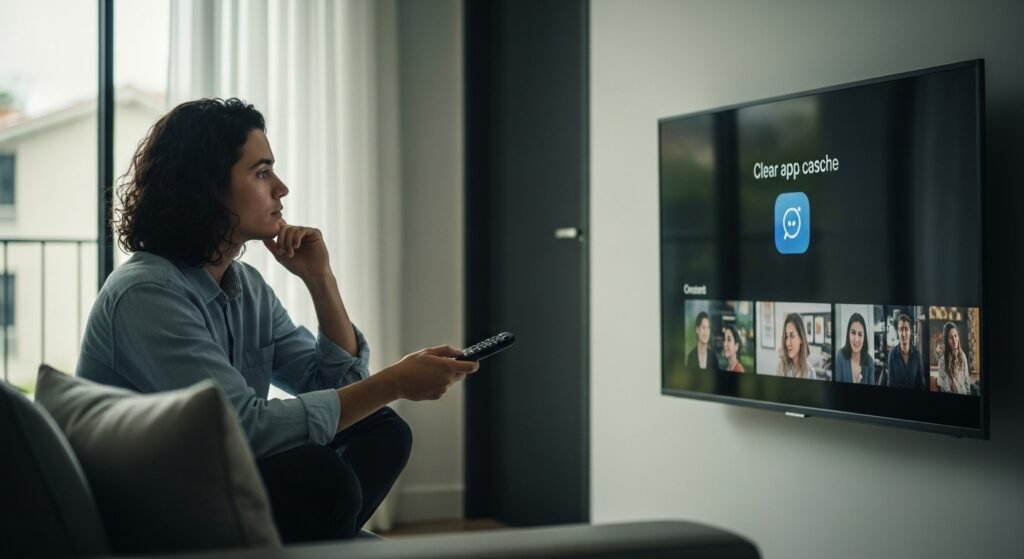
The Smart TV apps face the same clogging issue as phone applications when users install them over time which causes their functioning problems. The Netflix or YouTube application shows problems you need to access App Manager through settings and select Clear Cache to fix. The solution typically solves performance problems while keeping the application installed.
