
Many people who use AI assistants regularly build a valuable set of prompts, preferences, and instructions over time. These small details help an assistant understand a user’s writing tone, formatting habits, and the types of tasks they perform frequently. When switching platforms, users often worry that this accumulated context will be lost. Fortunately, migrating your workflow from ChatGPT (OpenAI) to Claude (Anthropic) can be done quickly with a structured approach. By carefully transferring prompts and instructions, you can recreate your workflow within minutes. The process is straightforward and practical, ensuring your AI assistant continues to support your daily writing, research, and planning tasks smoothly.
Review Your Existing Memory Settings
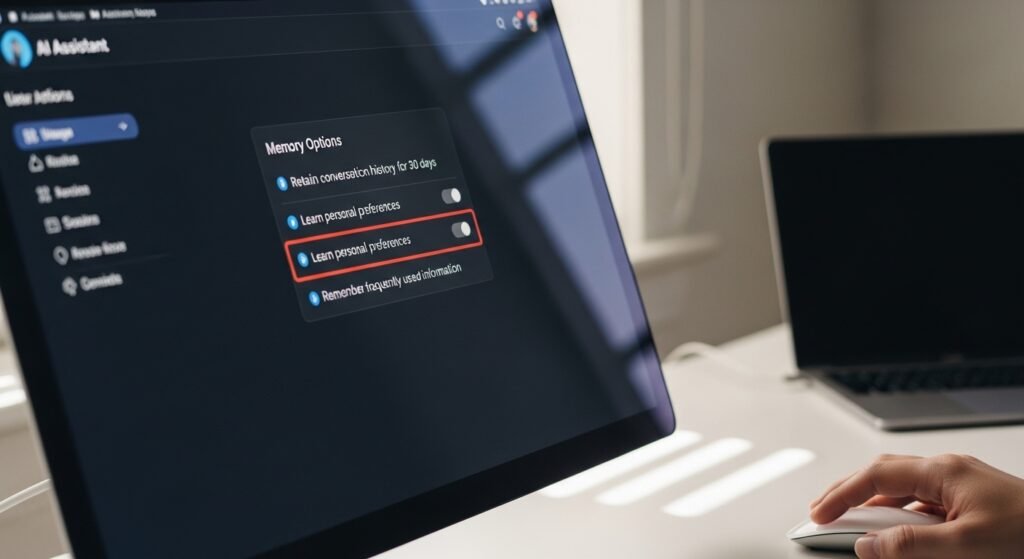
Start by opening your existing ChatGPT settings and review the memory section carefully. This area stores helpful preferences, previous instructions, and context. Identifying what information matters most will make the transfer process smoother later today.
Export or Copy Important Prompts

Next export or copy the key prompts instructions and preference notes saved inside ChatGPT Keeping them in a simple document helps organise your context before moving it into Claude later during setup reducing confusion significantly.
Sign In to the Claude Platform

Before opening Claude ensure you are signed into your account on the platform created by Anthropic This step matters because your transferred instructions will be stored within that workspace for future conversations and productivity tasks.
Start a Fresh Setup Conversation

Inside Claude begin a fresh conversation and clearly paste the saved instructions from ChatGPT Treat this message as a personal setup note describing your writing tone preferences work style and common requests you usually make.
Ask Claude to Use the Instructions as Guidance

After pasting the details ask Claude to treat the information as long term guidance for future chats This helps the assistant remember tone expectations formatting habits and repeated tasks you often perform during everyday work.
Simplify the Imported Instructions

Review the imported instructions carefully and simplify anything that feels repetitive Clear concise directions help Claude understand your preferences faster and reduce confusion during later conversations about writing research planning editing or analysis tasks online.
Convert Guidelines into Bullet Points

If your ChatGPT memory included writing guidelines content formats or tone rules convert them into short bullet points This structure makes it easier for Claude to scan remember and apply them consistently in later responses.
Test the Setup with a Familiar Task

Test the setup by asking Claude a familiar task such as drafting a short article outline or summary Compare the tone structure and clarity with what you previously received from ChatGPT conversations and adjust instructions.
Refine the Instructions Gradually

When results look slightly different refine your instructions gradually Small wording changes often improve how Claude interprets context expectations and formatting needs across future writing research brainstorming planning editing or explanation requests you make regularly.
Give the System Time to Adapt

Remember that each assistant learns context differently so patience during early conversations helps build stronger results Over time Claude will reflect your tone structure and working style more naturally across daily writing research planning tasks.
Keep Updating Your Instruction Message

Finally keep updating the instruction message whenever your workflow changes Adding new preferences formatting habits or writing goals ensures Claude continues reflecting the guidance you originally used inside ChatGPT making the transition feel smooth consistent.
