
The situation might occur when your internet speed decreases unexpectedly while video playback becomes disrupted. Your connection may be used by someone nearby who is either a neighbor or a person passing by. Your connection is being stolen by this method which results in speed loss and creates a security threat because unknown users can enter your network to view your shared files and connected smart devices.
Watch the Router Lights
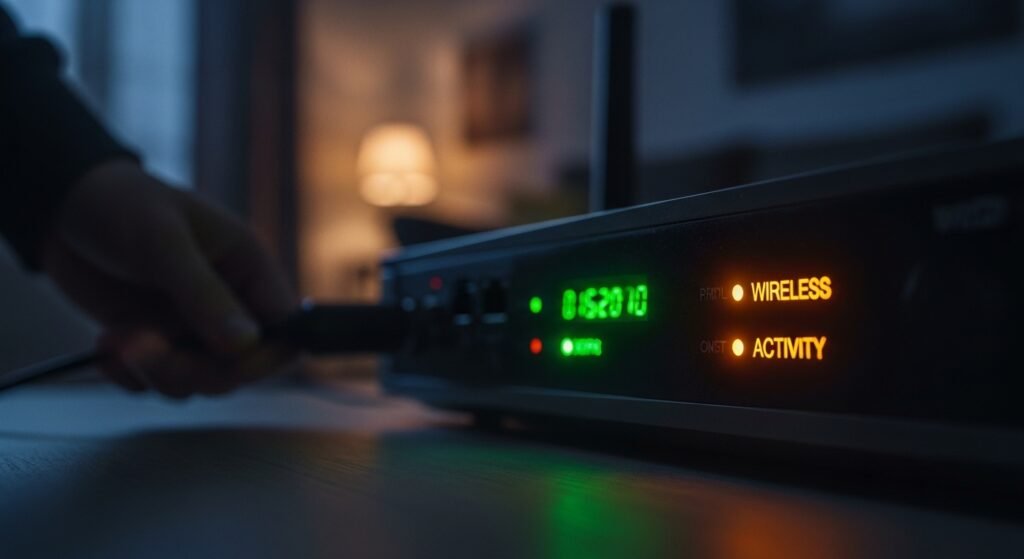
The simplest “old school” trick is to turn off every Wi-Fi device in your house (phones, laptops, TVs). When your router’s “wireless” light or “activity” light shows constant rapid blinking, it indicates that another person is currently using your internet connection.
Log Into Your Router’s Admin Panel

All routers include an internal system which operates as their primary control center. Your router IP address which is usually located on the device sticker can be accessed through any web browser. The network “brain” section shows you all active network activities at that moment.
Check the “DHCP Client” List
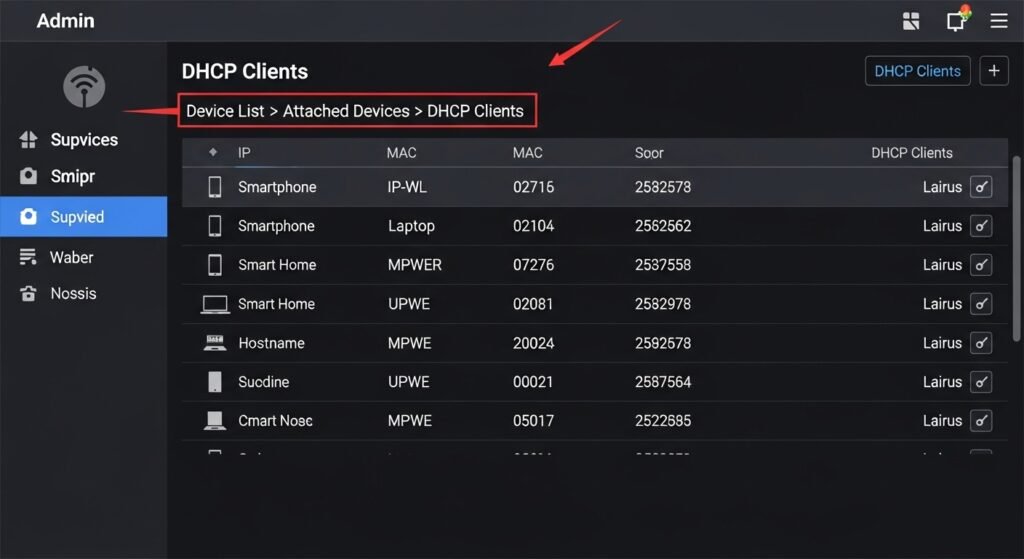
The admin panel includes a section which you need to find through “Device List” and “Attached Devices” and “DHCP Clients” section. The system shows you all devices which are presently connected to your Wi-Fi network.
Identify the “Unknowns”
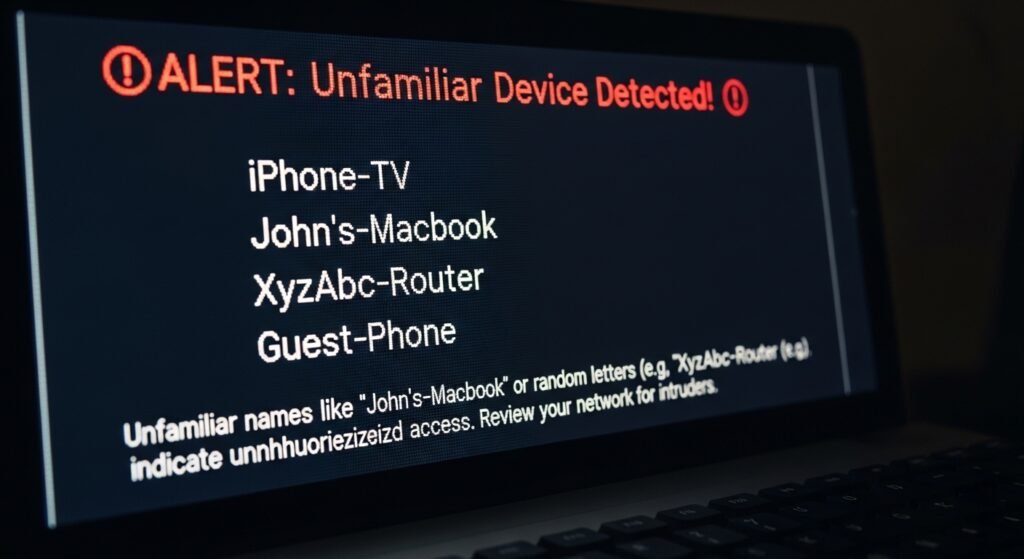
The available list contains names like “iPhone” and “Samsung-TV” for display. You need to identify unfamiliar names as “John’s-Macbook” or any collection of random letters since they indicate that an intruder exists on your network.
Match MAC Addresses

Each device has its own MAC address which serves as its unique identifier. The “About” section on your phone or computer contains the MAC address which you need to check for device identification. The device which appears on your router list should not match any of your devices since it belongs to another person.
Use a Network Scanner App
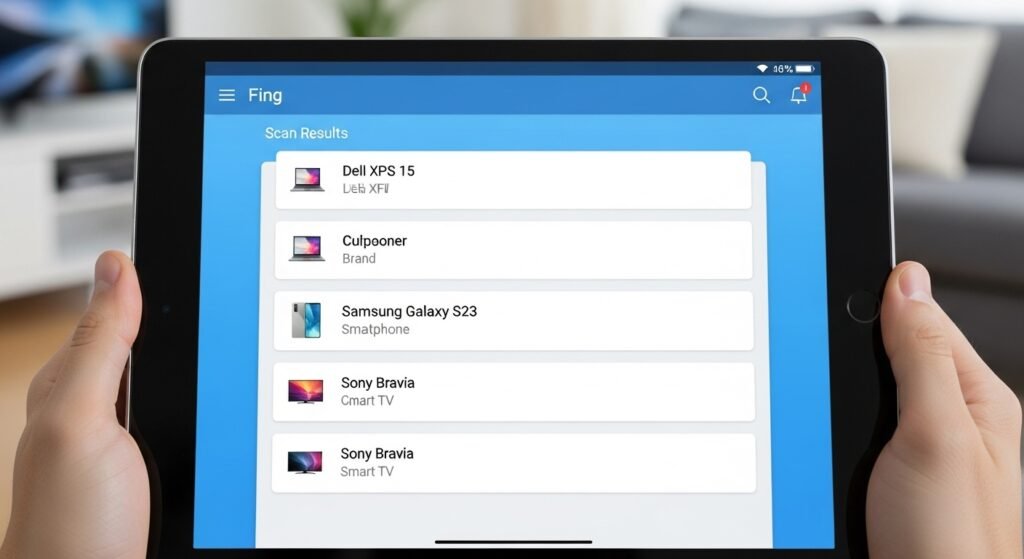
The technical requirements of the router dashboard make it hard to use, so you should obtain a free network scanner application called Fing. The applications scan your Wi-Fi network and present a user-friendly interface that shows all devices connected to the network along with their brand and model details.
Change Your Password Immediately

Changing the Wi-Fi password serves as the most efficient method to remove all users from your network. Select WPA2 or WPA3 security settings for your network. The moment you save your changes, all connected devices including your own will lose access, and the intruder will need the new password to enter again.
Use a Strong, Unique Passphrase

Do not use common passwords such as “Password123” or your home street name. Create a “passphrase” which consists of random words and numbers that you will remember while others cannot guess it.
Disable “WPS”

Wi-Fi Protected Setup (WPS) allows devices to connect via a simple button push or a short PIN. The security system provides protection until attackers discover the weak points which they need to exploit. Your settings will become more secure when you disable WPS protection.
Update Your Router Firmware

Your router requires software updates to fix security vulnerabilities, just like your phone needs its security patches. Wi-Fi cracking applications become effective against outdated routers which provide easy access for nearby users.
Hide Your Network Name (SSID)

Your router offers an option to operate in “Hidden” mode. The setting prevents your Wi-Fi network from being visible whenever someone tries to find existing networks nearby. You will need to enter the network name manually when connecting new devices which protects you from basic “Wi-Fi thieves” attacks.
Set Up a Guest Network
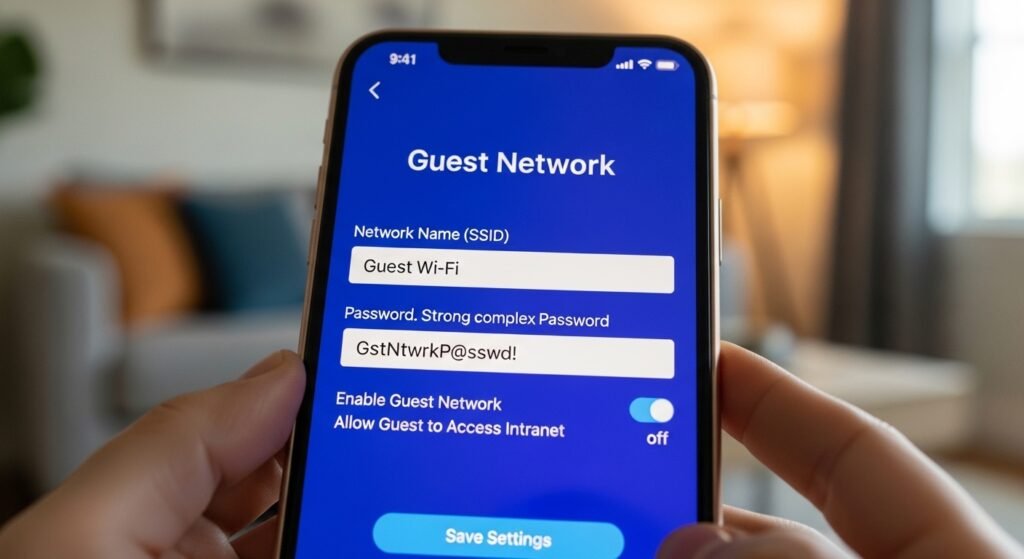
Set up a “Guest Network” with its own password for your visitors who stay at your home. This method enables your friends to access your internet connection while your friends remain barred from entering your primary network and using your main password.
