Now, this is what most people tend to think: that dragging files and folders directly into the Recycle Bin or Trash and then clicking on Empty would do, even when it comes to old computers selling, donating, or recycling. Unfortunately, it is just a shortcut from the data itself, i.e., not deleted at all. In fact, those private and all saved passwords, even bank history can be found dangling right on the hard drive by any hacker or data recovery specialists.
Specific steps need to be followed to “erase away” the drive to ensure that the personal information does not come back from the dead. Below are the 10 points for ensuring that the information is really and absolutely deleted:
Make Backups When Needed

First Although deleting files can be the most exciting process, the first step should be to ensure all important files have been saved. Place important photographs, documents, and tax returns onto an external hard drive or a secure cloud service. Once you reach the stage of “true deletion,” there is no “undo” option.
Sign Out of All

Deleting files could not mean that you would be signed out from the program where the files were stored. Manually log out from your accounts (Google, iCloud, etc.) via browser and de-authorize specific apps like iTunes or Adobe Creative Cloud. Thus, the new owner should not have a possibility to access your subscriptions or personal storage in a cloud.
Use Default Reset Feature
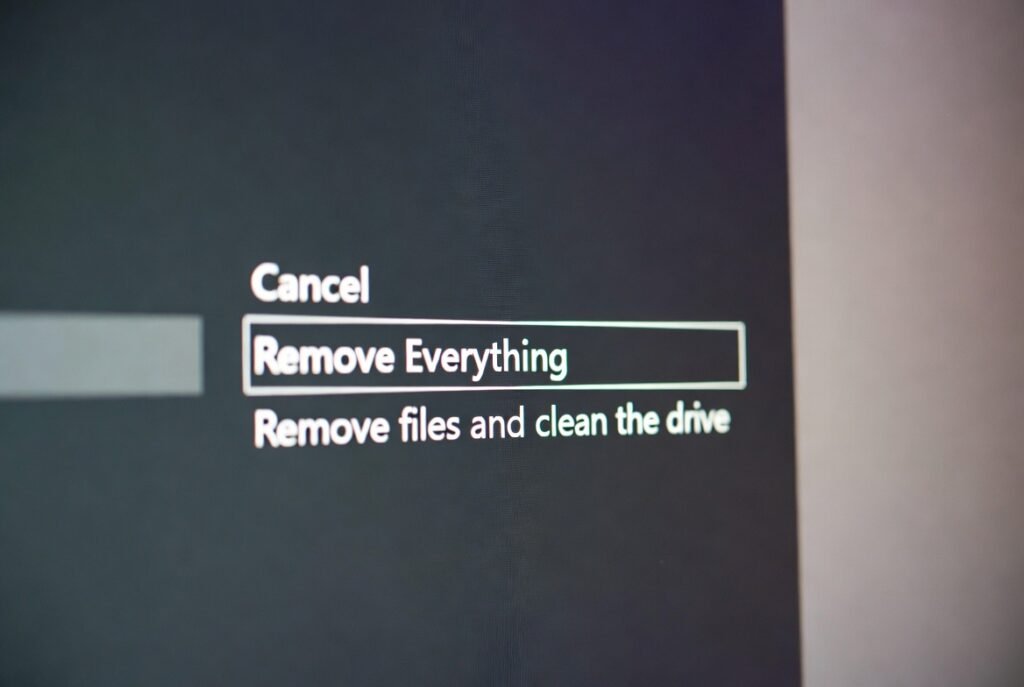
They provide the built-in tools to fulfill that need for Windows and for Mac: for the option “Reset this PC” available in Windows, one can choose to Remove Everything and Clean the Drive. Uniquely on Mac: one uses either an Erase Assistant or Disk Utility. They overwrite your files rather than only hiding them.
Understand the “Overwrite”:

Truly deleting data on the computer means writing over the place where those files used to be with random 1s and 0s-garbage data-just as sweeping pencil sketch marks under with a heavy, thick black marker until nothing of the original is visible. This kind of procedure cannot be performed using a quick format. Only full format or secure wipe can achieve it.
Make Sure That You Know the Type of Drive Running on Your Computer HDD or SSD
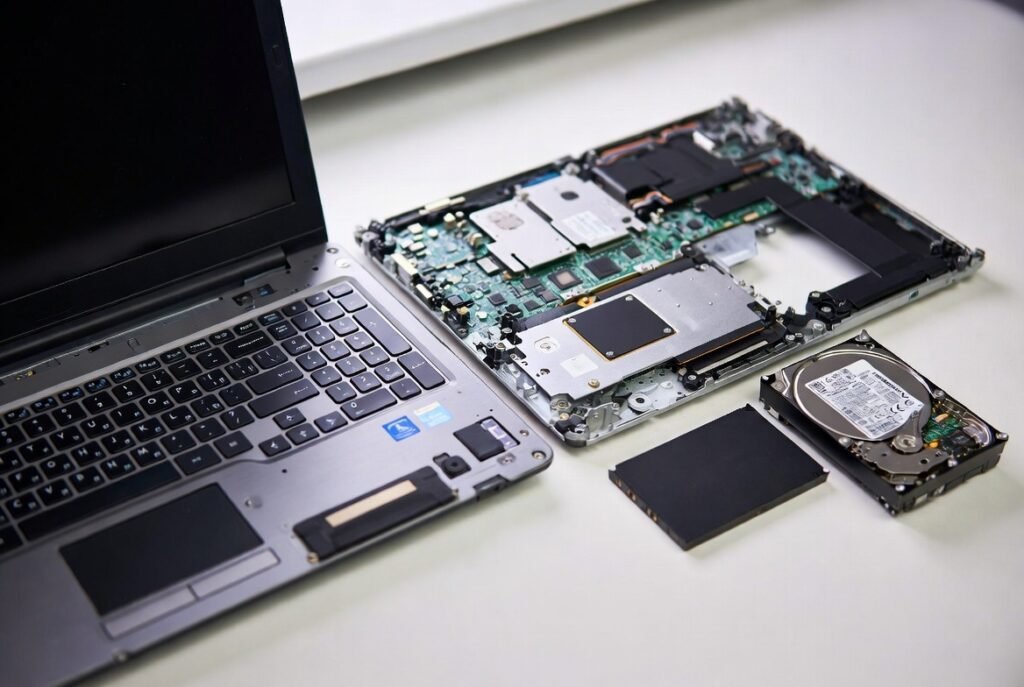
New generations of computers use SSDs instead of older HDDs with spinning platters. Data will be much more complicated to erase and more securely stored in logical format in SSDs than in HDDs. For SSD drives, it is preferable to utilize a “Secure Erase” CMD specific to the manufacturer and leave all of its “cells” cleared.
Utilize Other Wipe Software
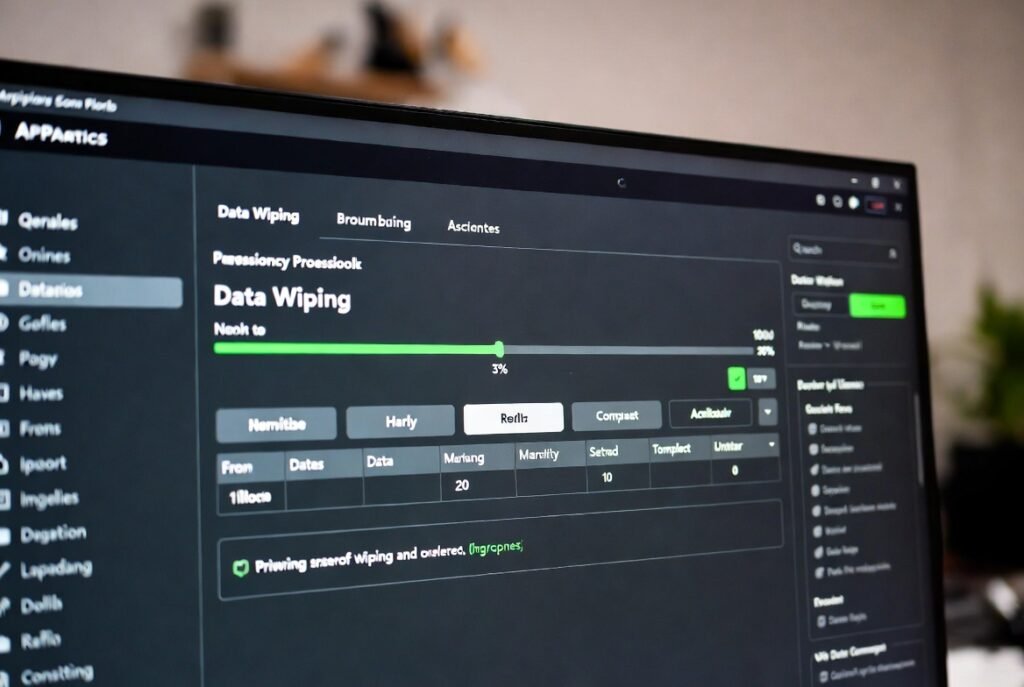
If you don’t want to trust built in tools in your machine, there are also paid softwares for that. These softwares use military grade mechanisms for overwriting each of your data literally millions of times so that it won’t even be possible for the most powerful recovery tools to find a trace of your original files.
Allow Space for Browser History

One of the things that are resolved in a standard web browser is a great lot of information in saved credit card numbers and login credentials. Regularly good habit and ideal for a reset of the computer to clear all cache, cookies, and stored passwords and then start the final wipe.
Wipe External Storage and Memory Cards

If the old computer has an SD card slot, or you give it away along with an old USB drive, those also need independent wiping. Use the computer’s disk management tools to perform Full Format on those resources. Just because they are in an “unplugged” state does not mean their data is protected.
It should appear to physical destruction
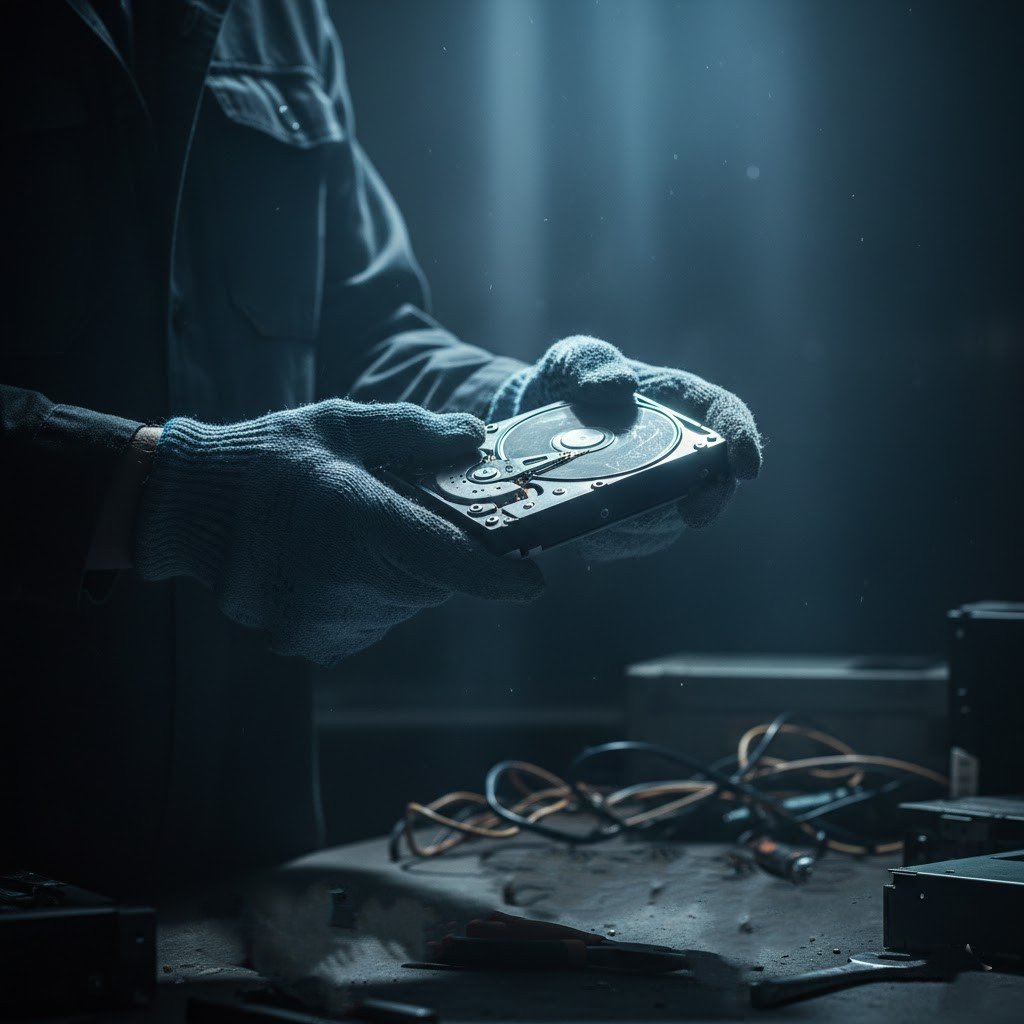
For example, if it is an old or damaged machine that the owner does not want to sell, physical destruction of data may be a sure way to delete it. Remove the HDD from any old drive in the case of HDD, and here goes for physical destruction with great dramatics using a drill or hammer. But this shouldn’t be done without wearing proper eye protection-you have to watch out for all the components within.
Trying Out After Wipe

After you have wiped out the hard drive to make the computer ‘new’ again, a check should be made by trying to log in. You will be brought to the initial set-up screens where you will have to choose a language and region. Anything else, such as the desktop coming up, or asking for your old password, means that the wipe has not been covered and you need to start again.
