
Over time, every computer collects temporary files that help programs run faster. However, these files, often called cache, can gradually take up valuable storage space and sometimes slow down system performance. Many users notice that their computer feels less responsive after months of regular use, even if they have not installed many new programs. Clearing the cache is a simple maintenance step that can help free storage and keep your system running smoothly. In Windows 11, there are several built-in ways to remove unnecessary cached files safely. By following a few straightforward steps, you can refresh your computer’s performance and maintain a cleaner system environment.
Temporary Files Cleanup
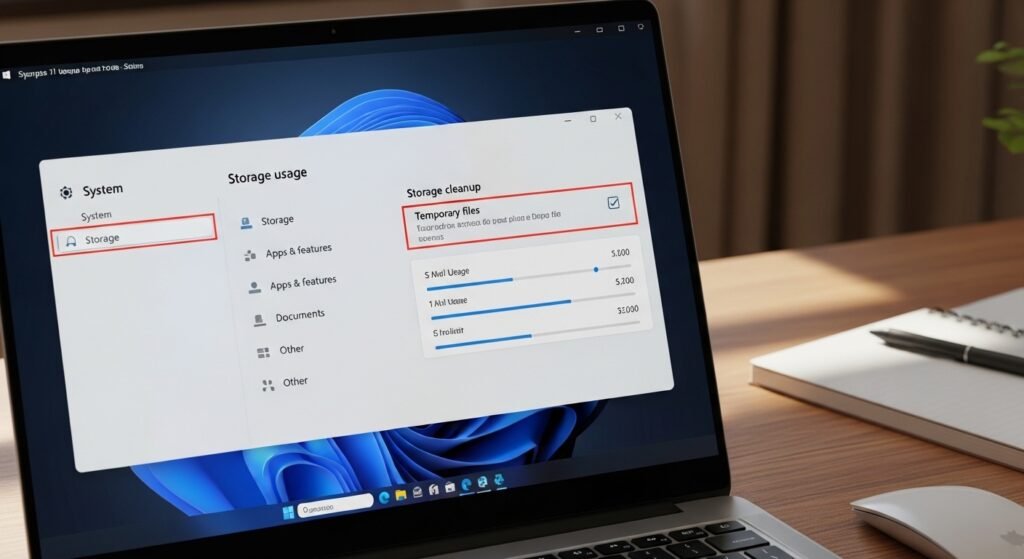
Temporary files build up as applications and system processes run. Opening the Settings app, navigating to Storage, and selecting Temporary Files allows you to review and delete unnecessary data that no longer serves a useful purpose.
Disk Cleanup Tool
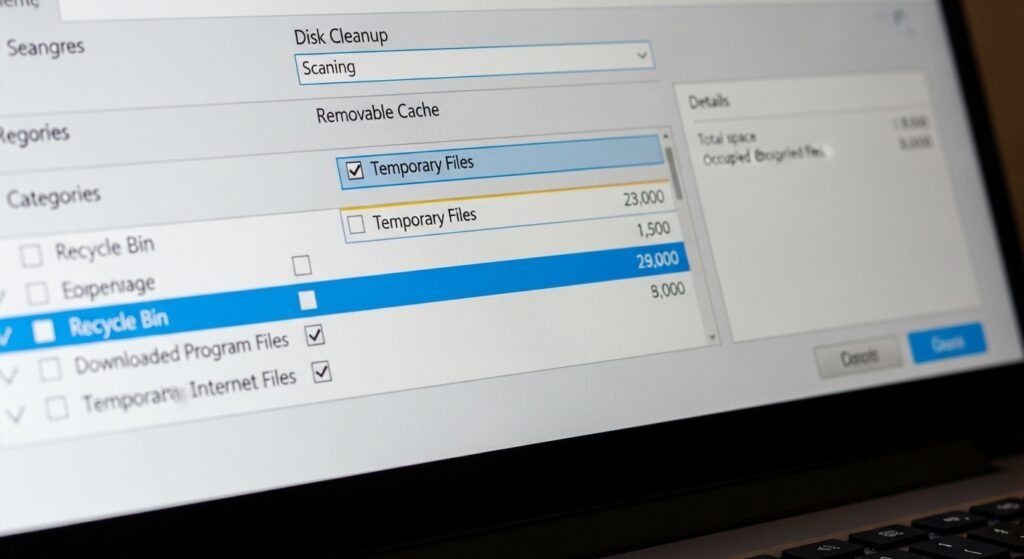
The classic Disk Cleanup utility still works effectively in Windows 11. By selecting your system drive and scanning for cached files, the tool identifies items such as thumbnails, temporary internet files, and delivery optimization files ready for removal.
Clear Windows Store Cache

Applications downloaded through the Microsoft Store also store cache files. Running the simple command that resets the Store cache helps remove leftover data and can resolve minor issues with apps that stop responding or updating.
Browser Cache Removal
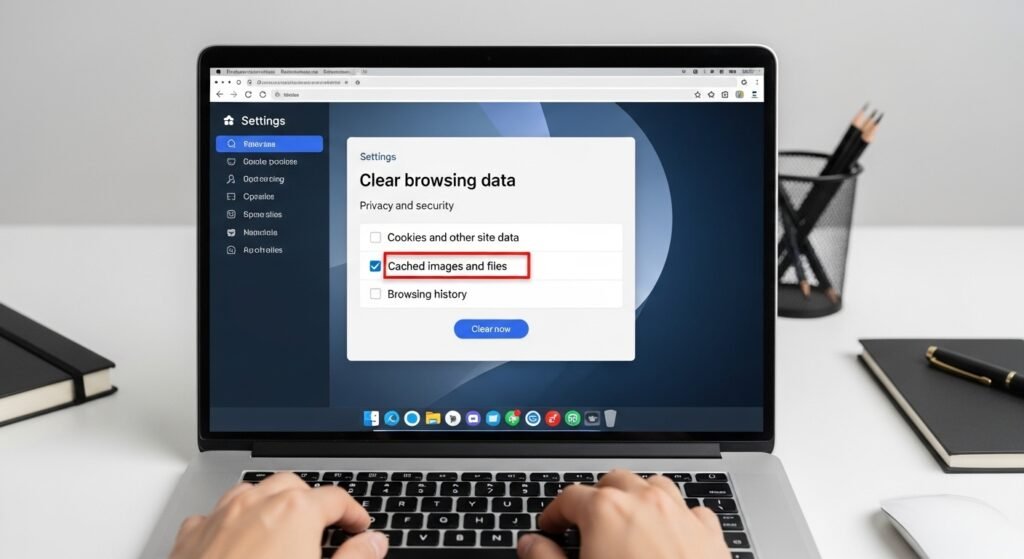
Web browsers store images, scripts, and page data to load websites faster. Clearing browser cache periodically through browser settings helps reduce storage use and ensures websites load the most up-to-date content.
Location Cache Reset
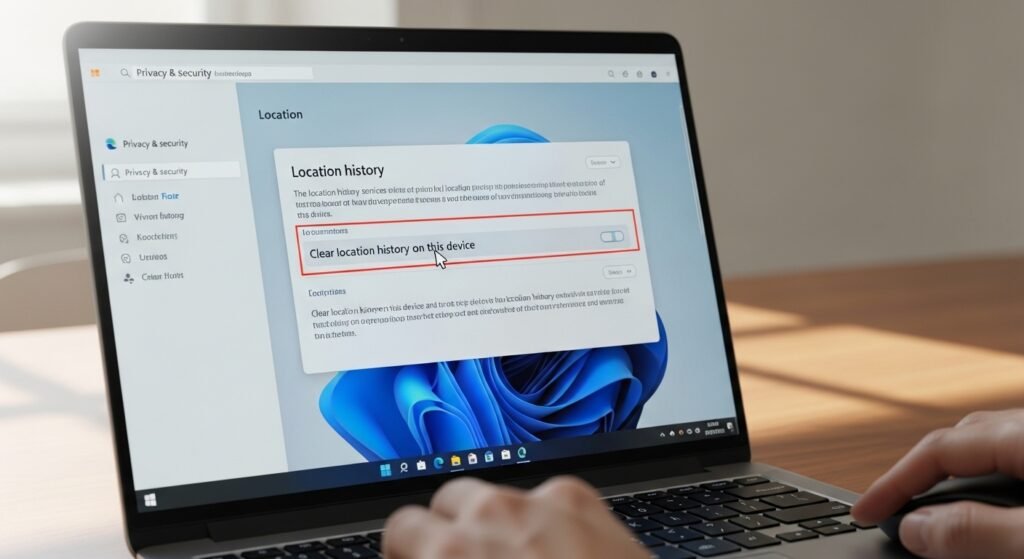
Windows stores recent location data to support maps and weather features. Resetting the location cache through Privacy and Security settings removes stored data and refreshes how location-based services work on your computer.
DNS Cache Flush

Domain Name System cache keeps records of recently visited website addresses. Flushing this cache through a simple command refreshes network information and can help resolve problems when websites fail to load correctly.
Microsoft Edge Cache Cleanup
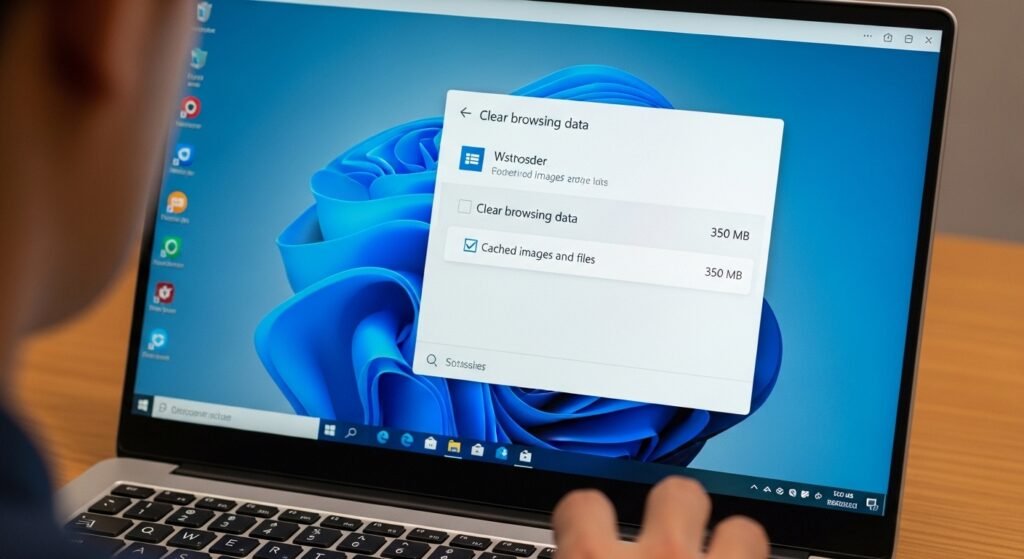
If you use the default Windows browser, clearing stored browsing data in Edge removes cached images, cookies, and files. This step can improve browsing performance and reduce unnecessary background storage use.
System Cache Through Storage Sense

Storage Sense is an automatic cleanup feature in Windows 11. When enabled, it periodically deletes temporary system files and cached data without manual effort, helping maintain available disk space over time.
Direct Temp Folder Cleaning
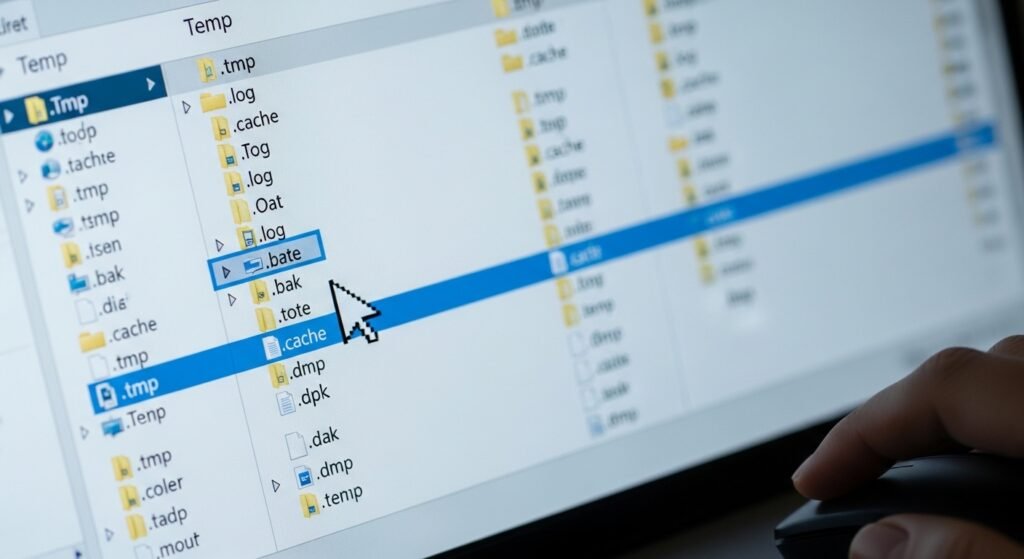
Windows stores temporary system files inside the Temp folder. Opening the folder through the Run command allows you to manually review and delete files that are no longer needed by the operating system.
Thumbnail Cache Reset
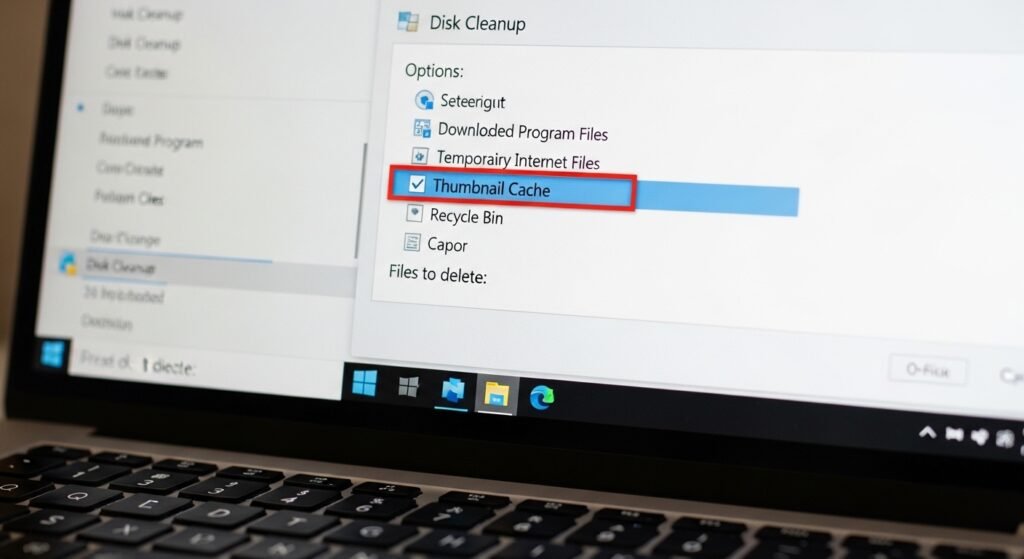
Thumbnail cache stores previews of images and videos in folders. Clearing this cache through Disk Cleanup forces Windows to rebuild previews, which can resolve issues when thumbnails stop displaying correctly.
Restart to Refresh Cache

Sometimes the easiest solution is restarting the computer. A system restart clears several temporary caches automatically and allows Windows to reload essential processes with fresh resources for smoother performance.
