A slow internet connection often leads people to blame the service provider. However, the real issue can sometimes be unknown devices quietly using your Wi-Fi network. Many households connect multiple phones, laptops, smart televisions, and home gadgets to the same router. Over time, it becomes difficult to remember exactly which devices are currently online. Learning how to check every device on your network helps you keep your connection secure and stable. It also ensures that only trusted devices are using your internet service. With a few simple steps through your router settings or mobile tools, you can quickly review connected devices and maintain better control of your home network.
Check the Router Dashboard
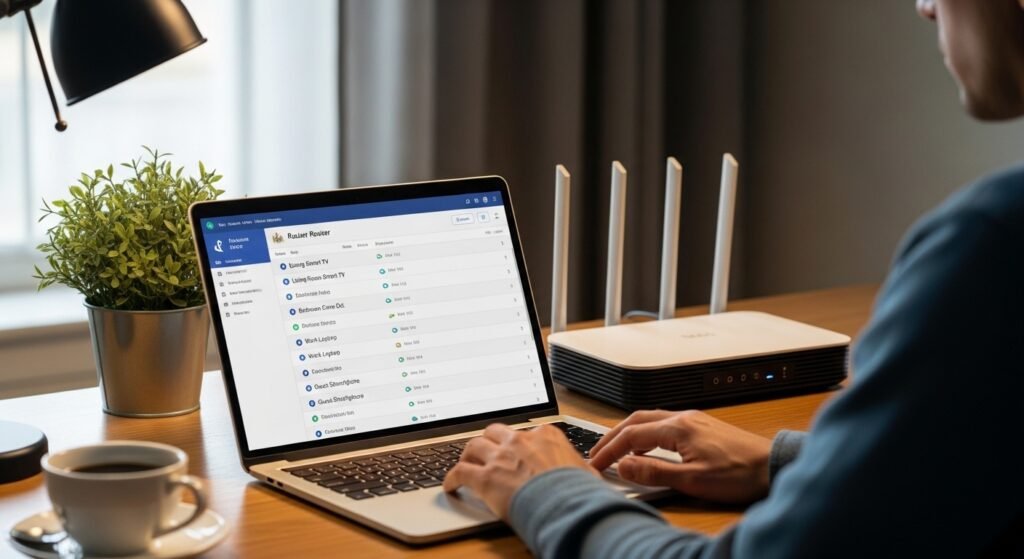
The easiest way to view connected devices is through the router dashboard. Enter the router’s address in a browser, log in with the admin details, and open the device list section. It shows every phone, laptop, and gadget currently connected.
Use Your Internet Provider’s App
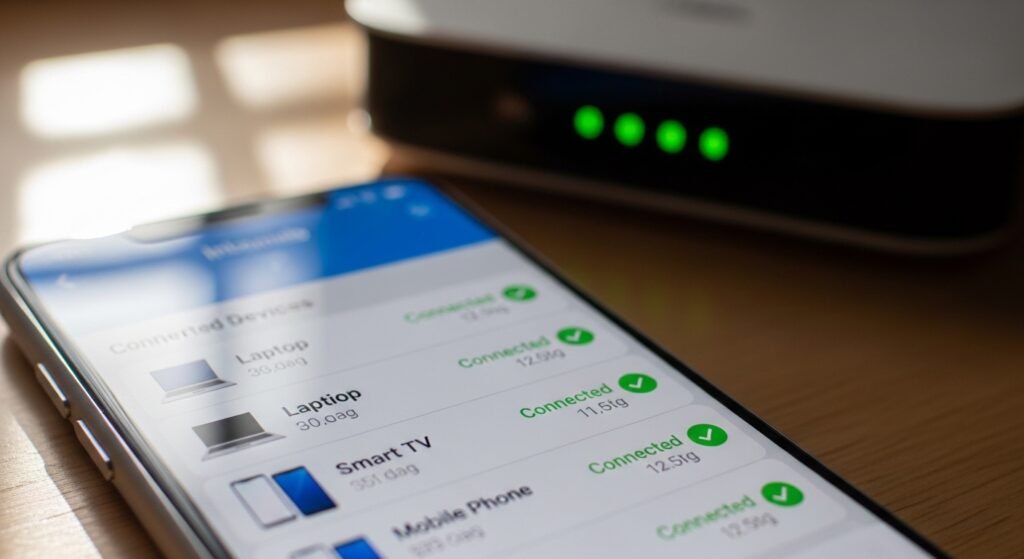
Many internet providers offer mobile apps that display network activity. These apps often include a simple list of connected devices, making it easier to identify unfamiliar gadgets without needing advanced technical knowledge or complicated settings.
Look for Device Names Carefully
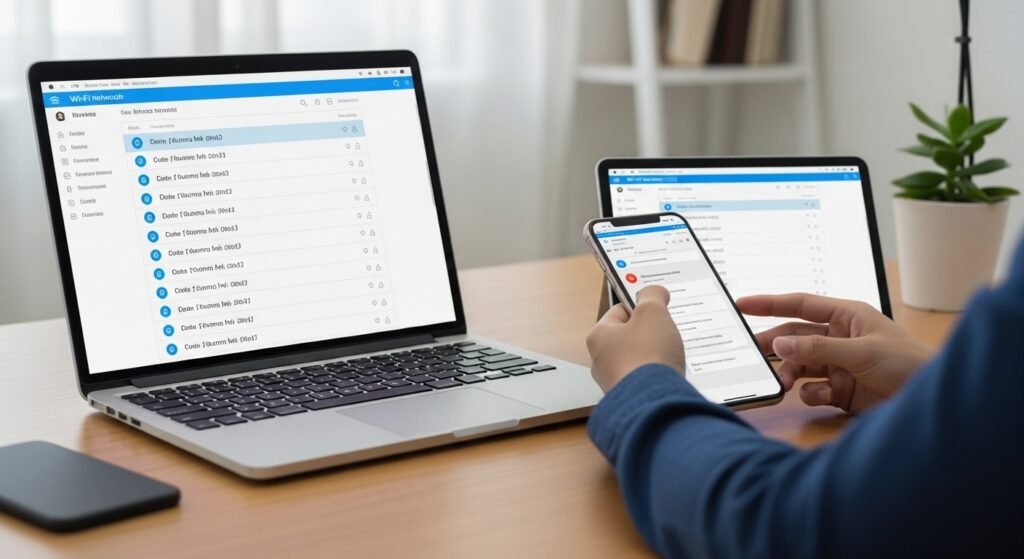
Each connected device usually appears with a name or manufacturer label. Reviewing these names helps you identify your own phones, tablets, or televisions. If a name looks unfamiliar, it may be worth checking further to confirm whether it belongs to you.
Check the Number of Connected Devices
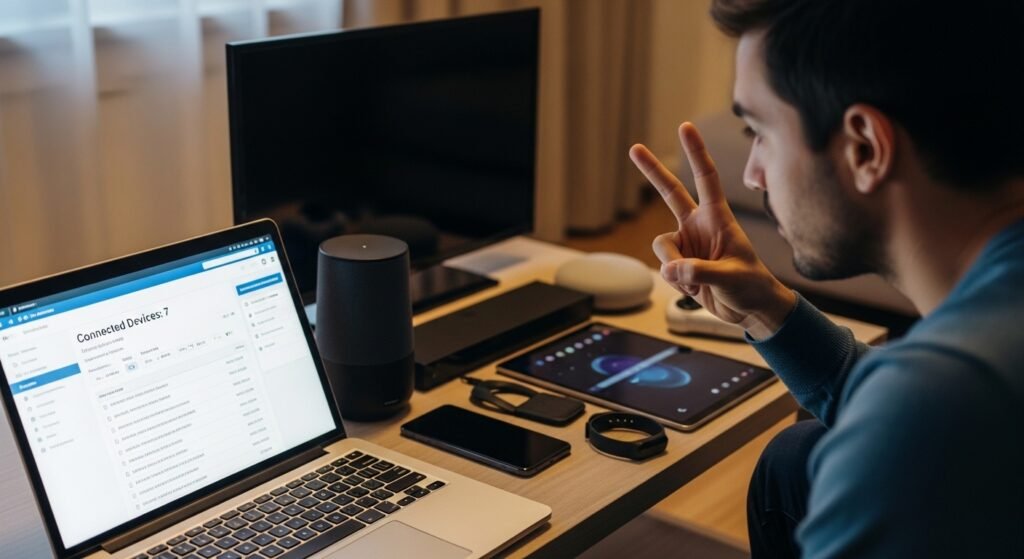
Routers show how many devices are currently active on the network. If the number appears higher than expected, it can signal that extra gadgets are connected. Comparing the list with devices in your home helps you spot unusual activity quickly.
Identify Devices by MAC Address
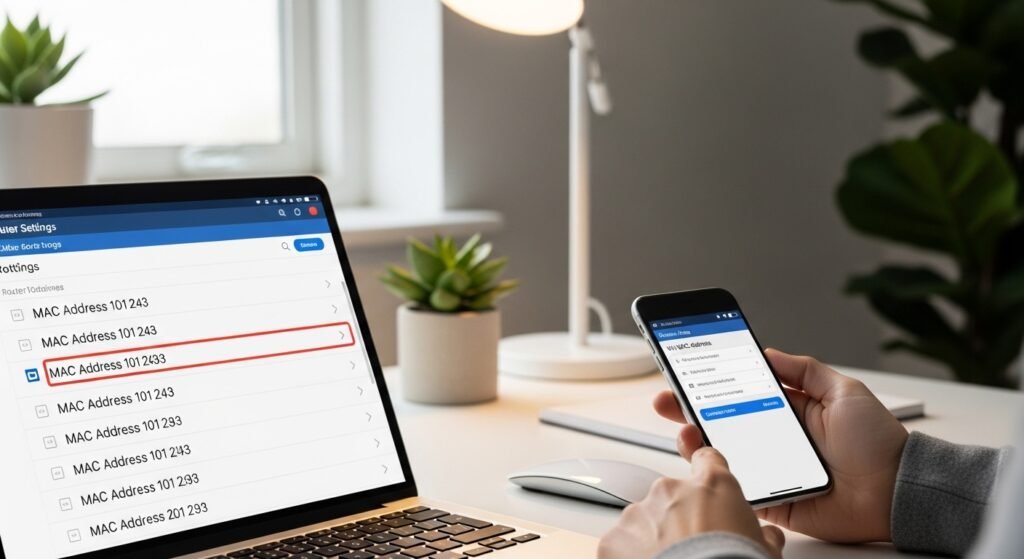
Every device has a unique MAC address that appears in router settings. Matching this address with the devices you own allows you to confirm which ones belong to your household and which might require closer inspection.
Disconnect Unknown Devices
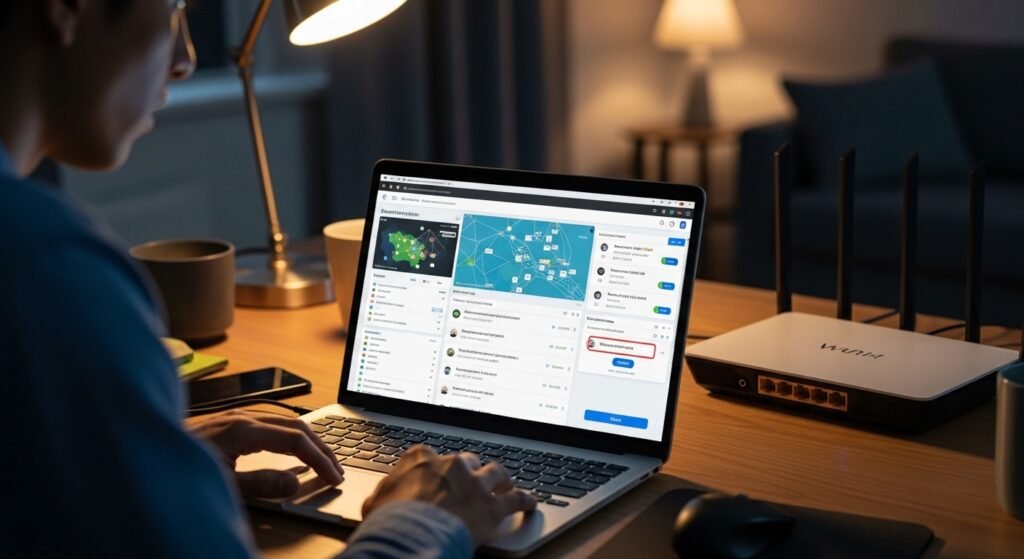
Most routers allow administrators to block or remove devices directly from the dashboard. If you notice a device you cannot recognize, removing it from the network immediately protects your bandwidth and improves overall connection stability.
Change the Wi-Fi Password Regularly
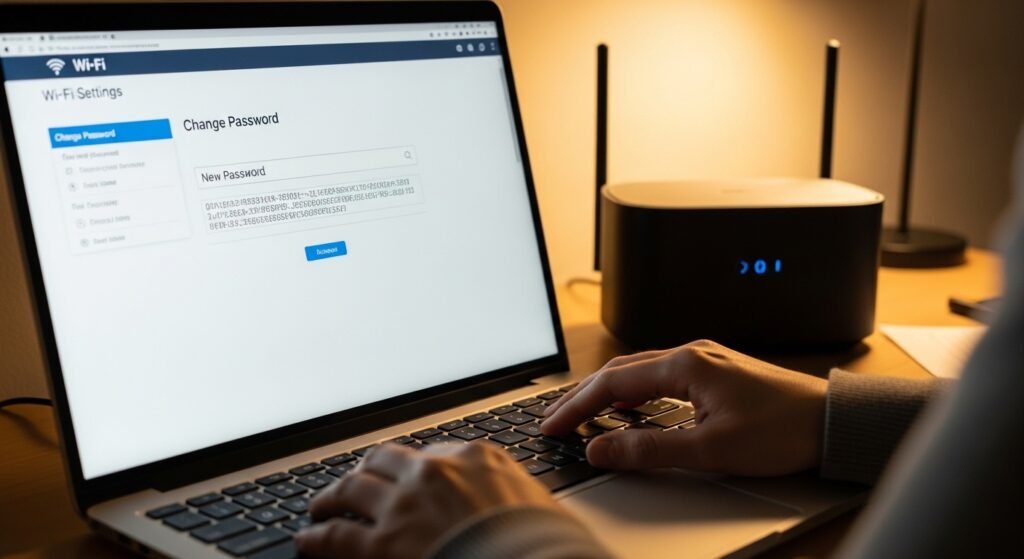
Updating your Wi-Fi password prevents previous users from reconnecting automatically. Choose a strong password that includes letters and numbers. This simple step greatly improves network security and keeps access limited to trusted devices.
Enable Network Notifications
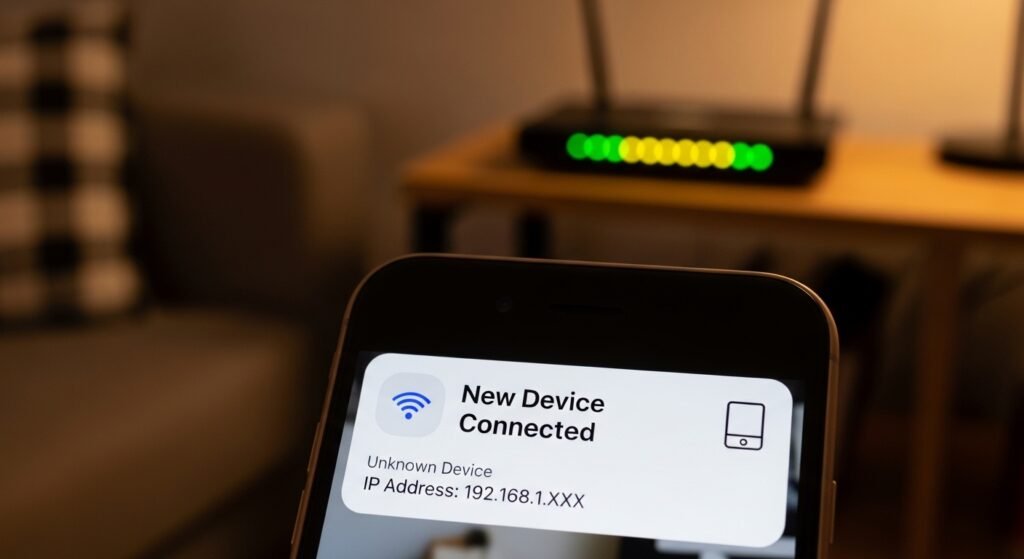
Some routers send alerts when a new device joins the network. Activating this feature helps you stay informed about changes. If an unknown device appears, you can respond quickly before it affects your internet speed.
Use Network Scanner Tools
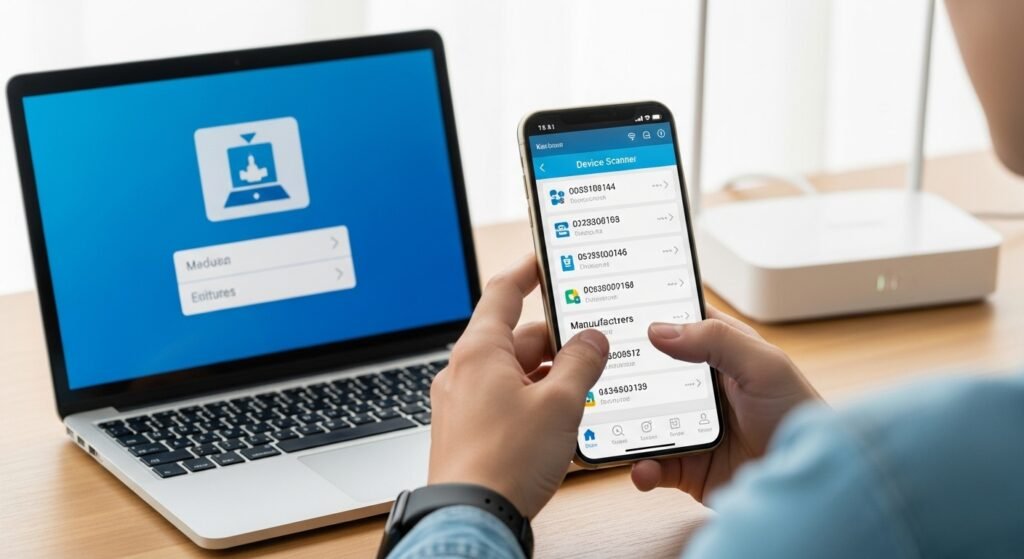
Network scanning tools can help identify devices connected to your Wi-Fi. These tools display device details such as IP addresses and manufacturers, making it easier to track down unfamiliar gadgets using your connection.
Create a Guest Network
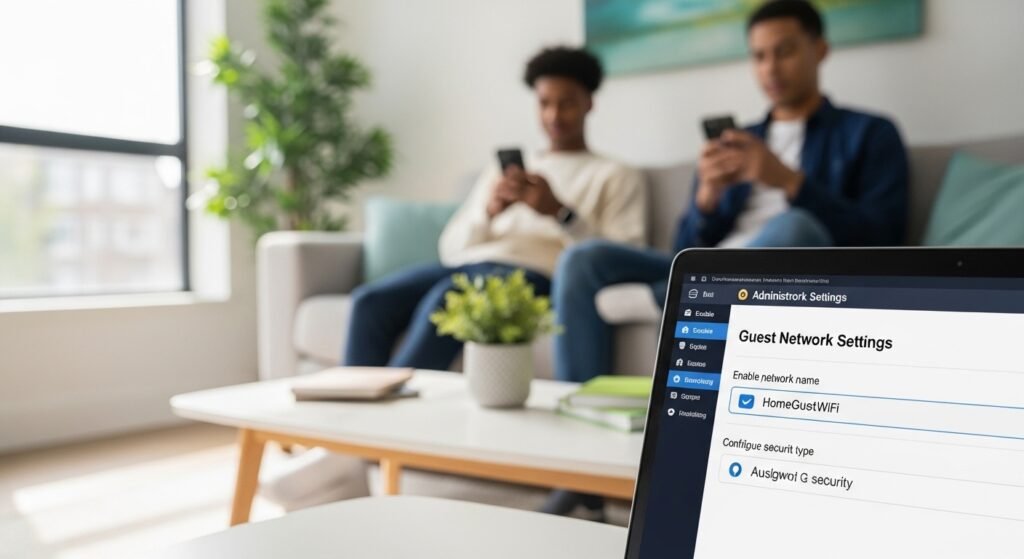
A guest network allows visitors to use the internet without accessing your main network. This feature separates personal devices from temporary users and helps you monitor which connections belong to guests rather than household devices.
Restart and Review Your Network
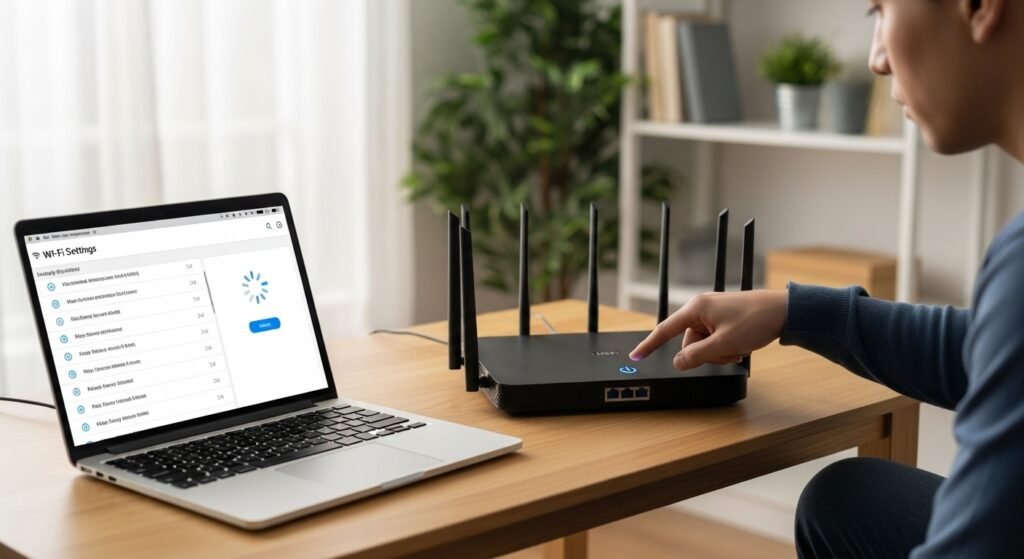
Restarting your router refreshes the connection and reconnects only active devices. After the restart, check the device list again. This method provides a clearer view of which gadgets are truly using your Wi-Fi network.
