A cluttered inbox can quietly drain time and attention. Many people sign up for services, newsletters, and online accounts over the years, and the messages slowly pile up. Important emails get buried while unwanted ones appear every day. Fortunately, a few thoughtful adjustments inside Gmail can make a noticeable difference. Instead of constantly deleting messages, small system changes can reduce how much unwanted mail reaches your inbox. These methods rely on built-in features that many users overlook. With a little setup and a few minutes of maintenance, it becomes easier to keep your inbox organized, focused, and far less crowded.
Use Gmail Filters for Repetitive Senders
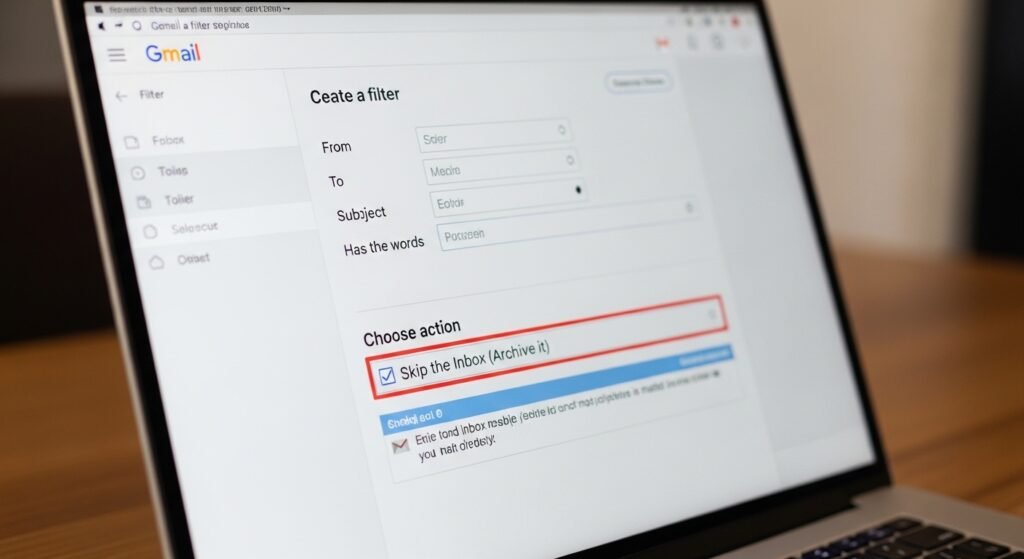
Filters allow Gmail to automatically manage emails from certain senders. When a repeated promotional message appears, create a filter that sends future emails directly to the archive or another folder, preventing them from appearing in the main inbox.
Unsubscribe from Old Newsletters

Many inbox messages come from newsletters you no longer read. Open one email from the sender and use Gmail’s unsubscribe option near the top. Over time, removing unused subscriptions significantly reduces incoming promotional messages.
Mark Unwanted Emails as Spam
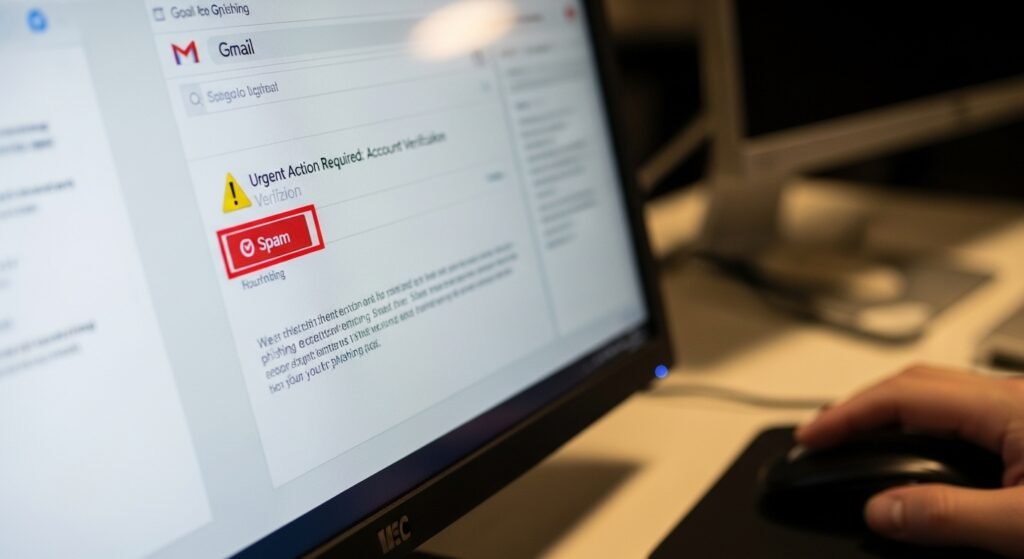
When a suspicious message arrives, select the spam option. Gmail’s system studies these signals and improves its filtering accuracy. Repeating this step helps the platform recognize similar emails and block them automatically.
Create a Separate Promotions Folder
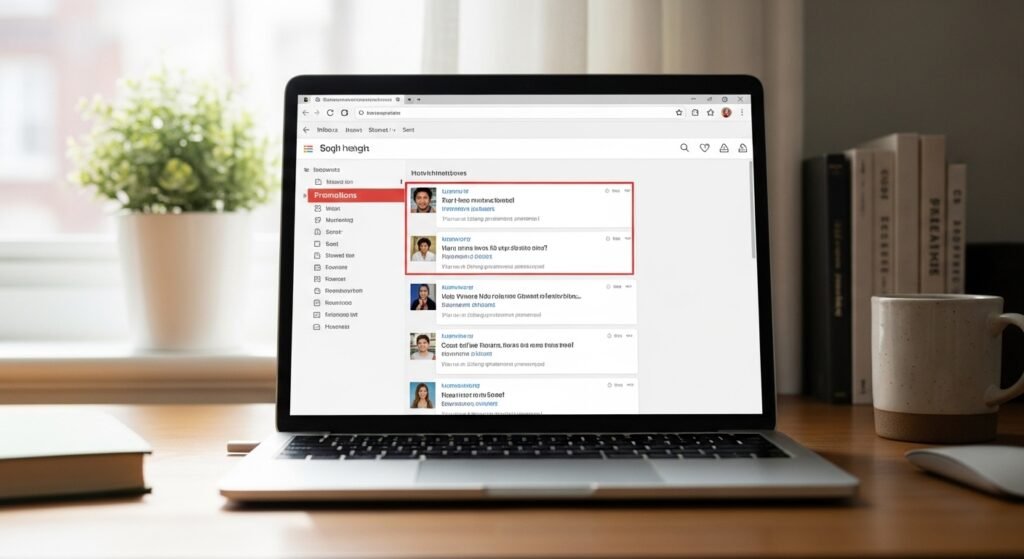
Promotional messages are not always harmful, but they can crowd the inbox. Create a label and filter that moves marketing emails to that folder. This keeps useful offers accessible while protecting the main inbox from clutter.
Review Connected Accounts and Apps
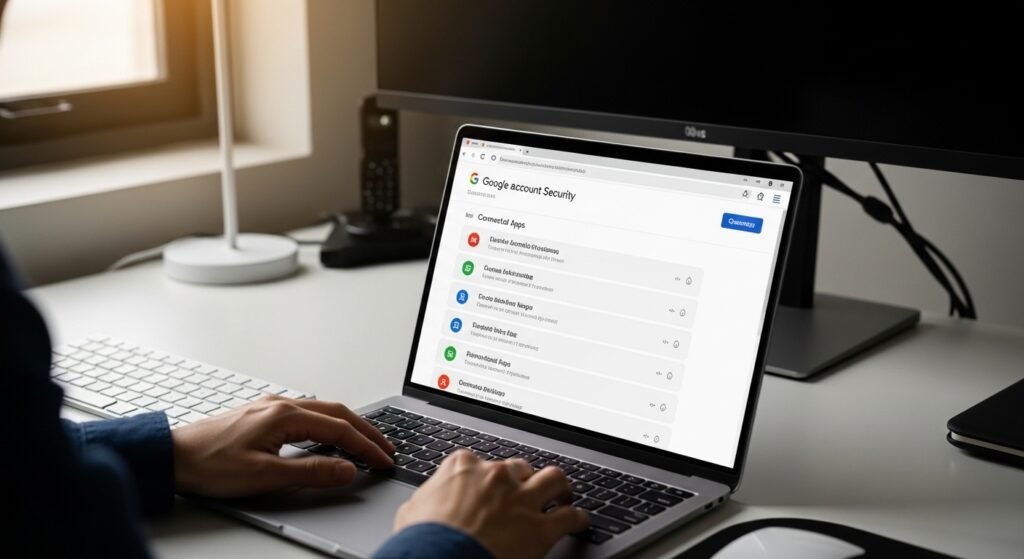
Some spam comes from websites that gained permission to send notifications. Review connected accounts in your email settings and remove unfamiliar services. Limiting these connections reduces automated messages generated by external platforms.
Use the Search Bar to Find Bulk Senders
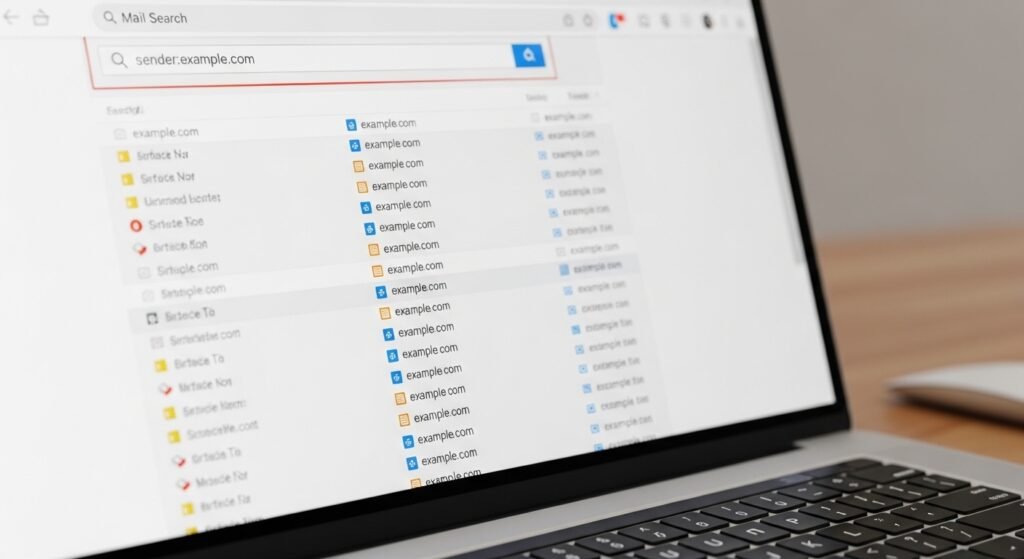
Search your inbox using a sender’s domain or a common subject line. This quickly reveals how many emails a single source sends. From there, you can delete old messages and create filters to control future ones.
Disable Email Notifications from Certain Services

Online platforms often send frequent updates that are not always useful. Adjust notification settings inside those accounts and turn off email alerts you rarely read. Reducing unnecessary notifications keeps your inbox quieter each day.
Archive Instead of Leaving Messages Unread
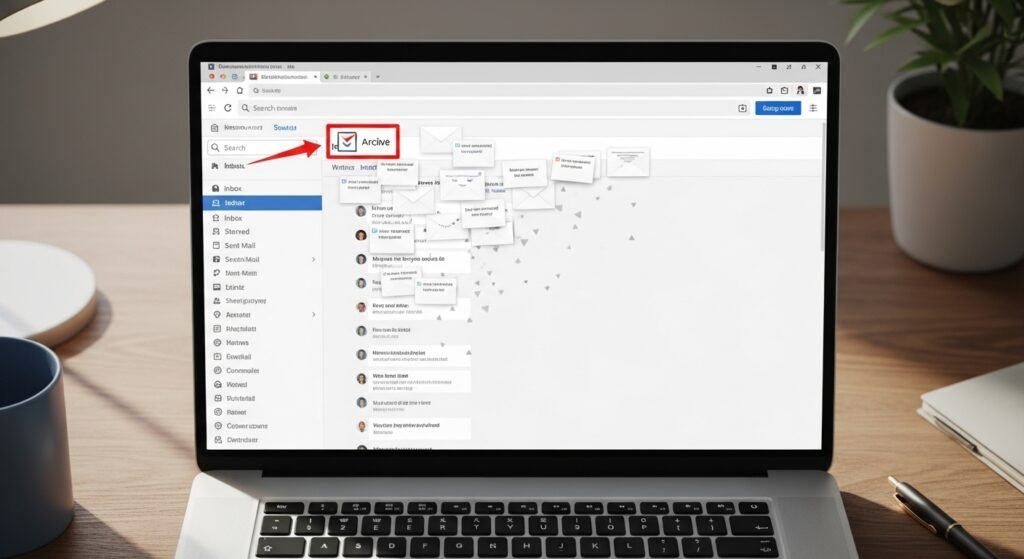
Old emails sitting in the inbox create visual clutter. Use Gmail’s archive feature to move messages out of sight without deleting them. Archived emails remain searchable, while the inbox stays focused on current communication.
Use the Block Sender Feature When Needed
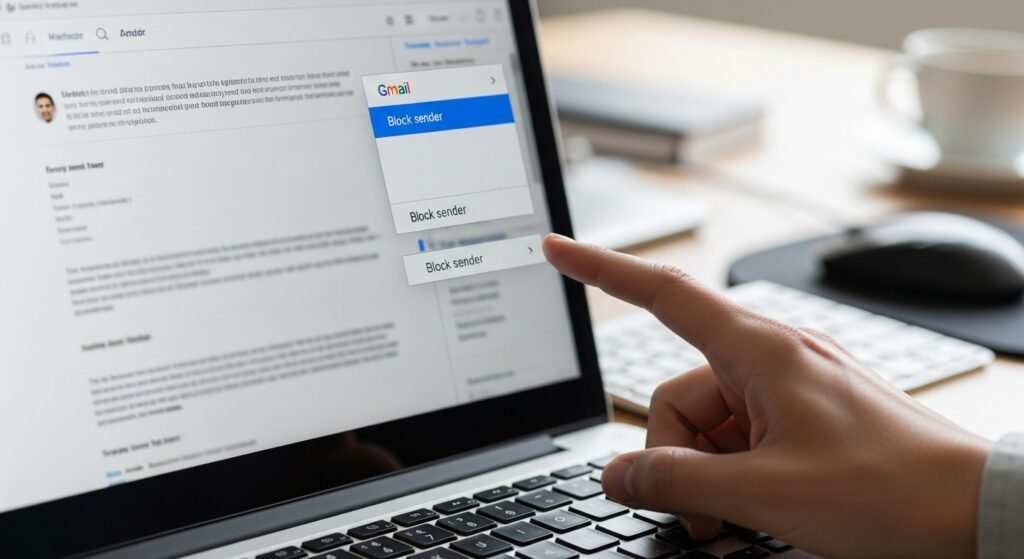
If a sender continues sending unwanted emails, blocking them prevents future messages from reaching your inbox. Gmail automatically routes blocked messages to spam, helping maintain a cleaner and more manageable email environment.
Schedule a Weekly Inbox Cleanup

Set aside a few minutes each week to review new senders and remove unwanted subscriptions. Regular maintenance prevents spam from building up and keeps email habits organized without requiring large cleanup sessions later.
Turn on Gmail’s Smart Spam Protection
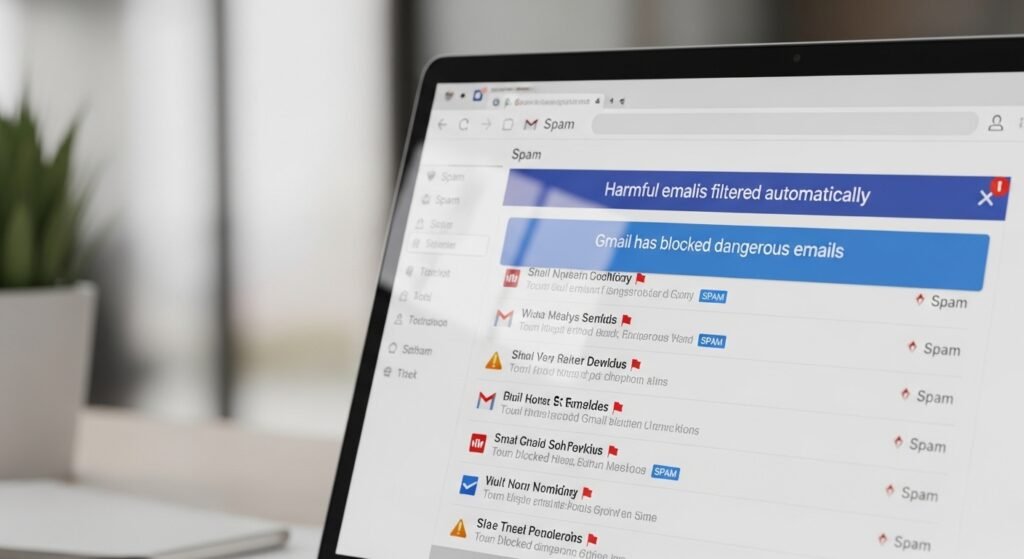
Gmail includes advanced spam detection that works quietly in the background. Keeping this feature active allows the system to study patterns and stop harmful or irrelevant messages before they appear in your inbox.
