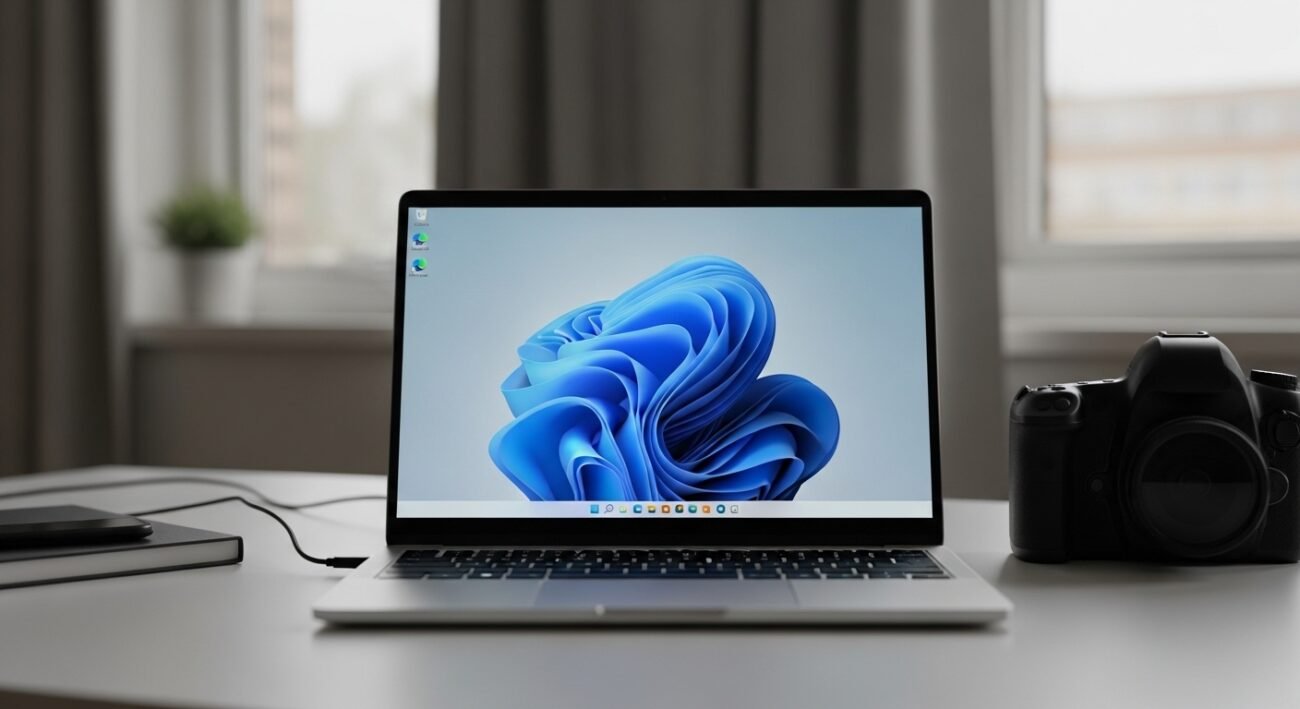
Windows 11 introduces a new user interface design which provides users with better operational capabilities than the existing system interfaces. The hidden features in Windows 11 become essential to user experience because they enable users to discover their functions through exploration. The existing tools function as complete support systems which assist users in completing tasks faster while maintaining their privacy and building organized digital workspaces.
The Secret “Quick Link” Menu
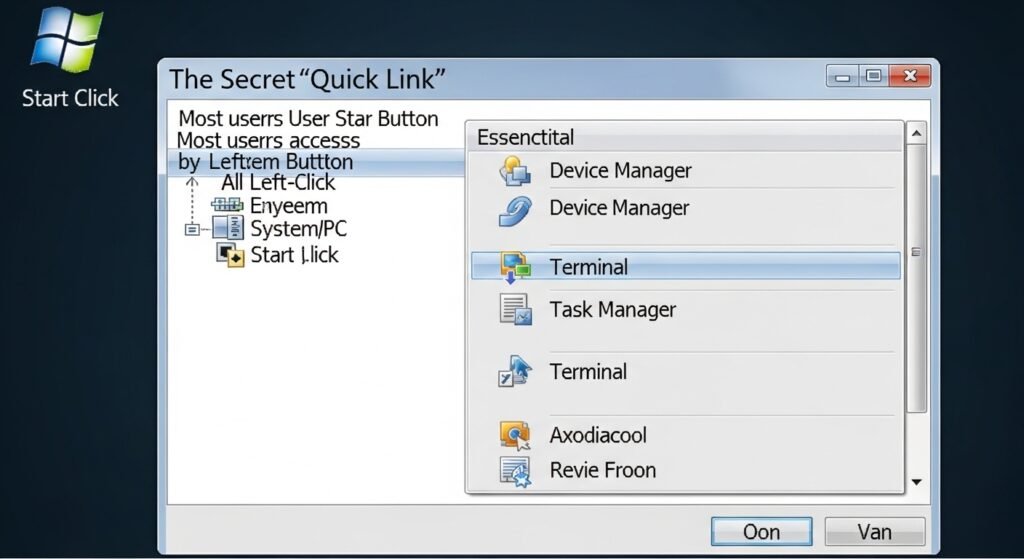
Most users access the Start button by performing a left-click. The special user menu delivers immediate access to essential PC functions through its display of Device Manager and Task Manager and Terminal tools. The interface enables users to access all system functions through a single menu which displays essential functions from their PC.
Snap Layouts for Easy Organizing
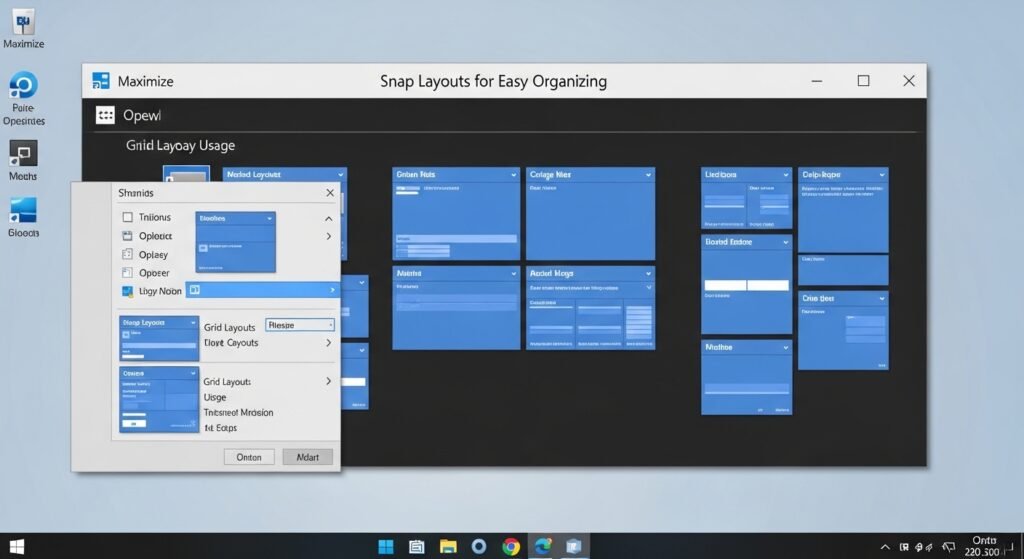
To manage excessive window usage you should position your mouse over the “Maximize” button which appears as a small square located in the upper right corner of any window. The grid layout menu displays different design options through which users can choose their preferred layout. The system enables you to designate a layout which Windows uses to organize your applications into either a dual display mode or a four-section workspace.
Universal Voice Typing
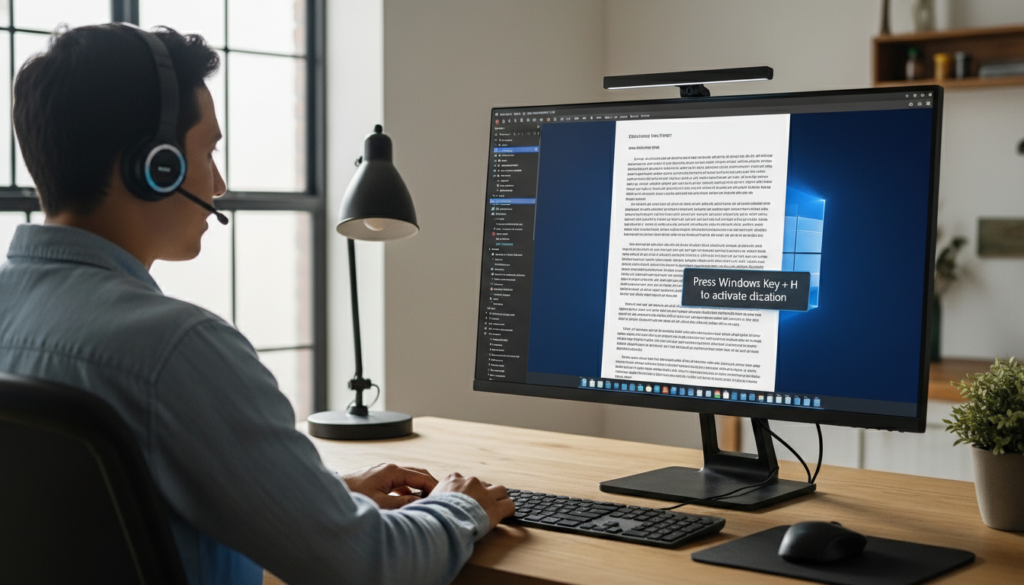
Users can produce documents and emails without needing to type text into the computer manually. Users can activate the dictation tool which operates with high-quality speech recognition by pressing Windows Key + H in any text box. Microsoft develops voice recognition technology which produces accurate transcription results through its automatic punctuation function when users speak.
Multiple “Virtual” Desktops
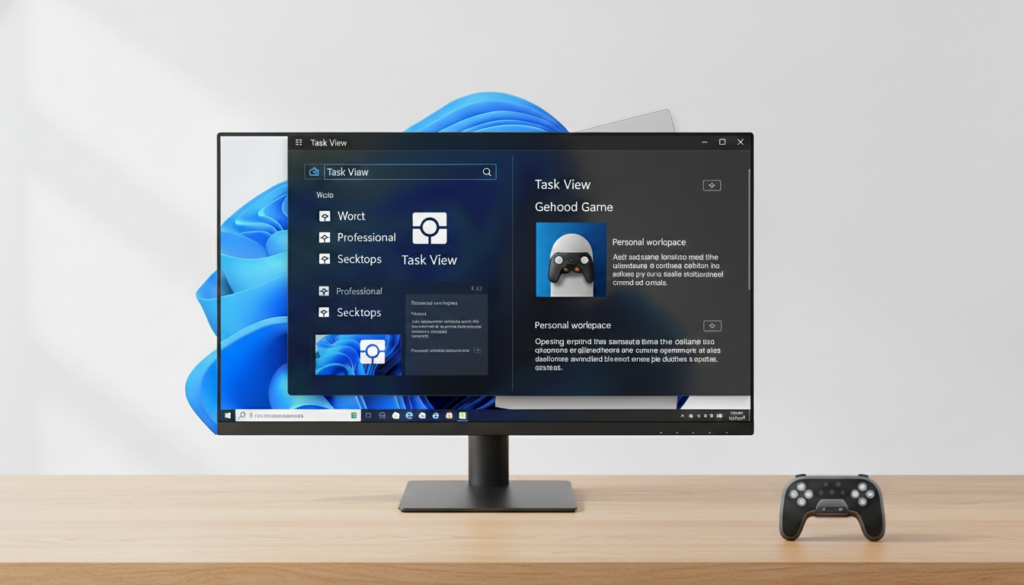
Users who work and play games can establish two different workspaces. Users need to select the Task View icon which displays two overlapping squares from their taskbar. Users can establish two different desktops which contain a professional workspace and a personal workspace. Users can manage two different applications while operating two separate applications at different times through swipe gestures which help them maintain their workflow.
Focus Sessions
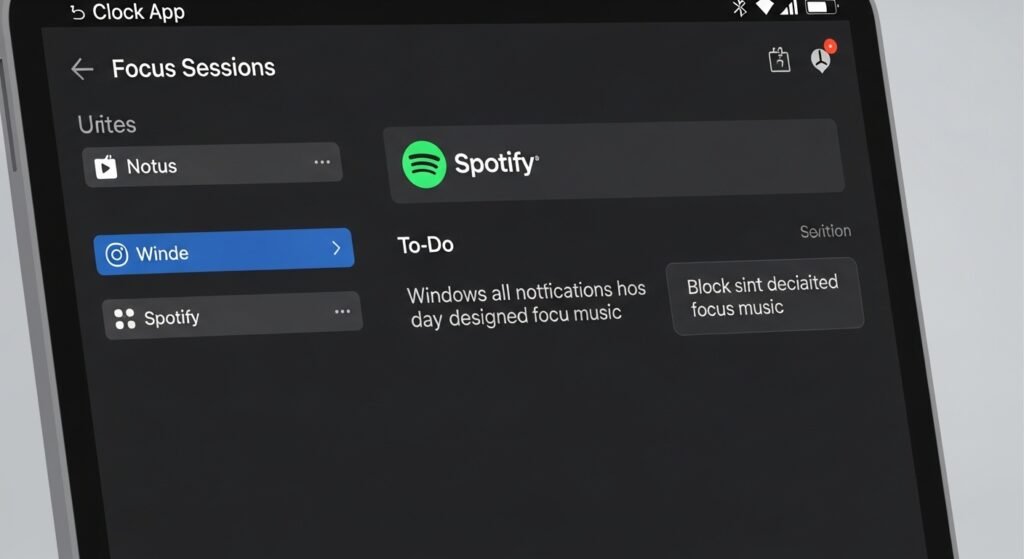
The Clock App includes Focus Sessions as a dedicated space which operates as a functional area within the application. The system unites your Spotify account and your To-Do lists into a single interface. Windows creates a silent environment by blocking all notifications while it plays designated focus music for an established period. The system operates as a productivity assistant which supports your shift into the dedicated work period.
The New Emoji & Clipboard Panel
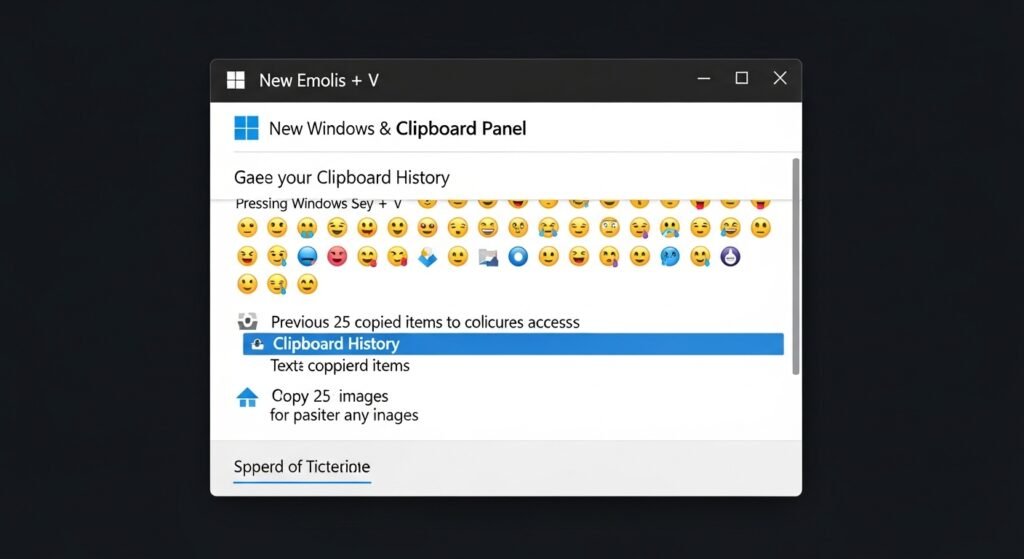
Pressing Windows Key + V enables users to transform their experience with technology. The application opens emojis but it also gives access to your Clipboard History. The system enables users to access their previous 25 copied items which includes both text and images for pasting at any time. Users can now access information without needing to duplicate the copying procedure.
Live Captions for Any Audio
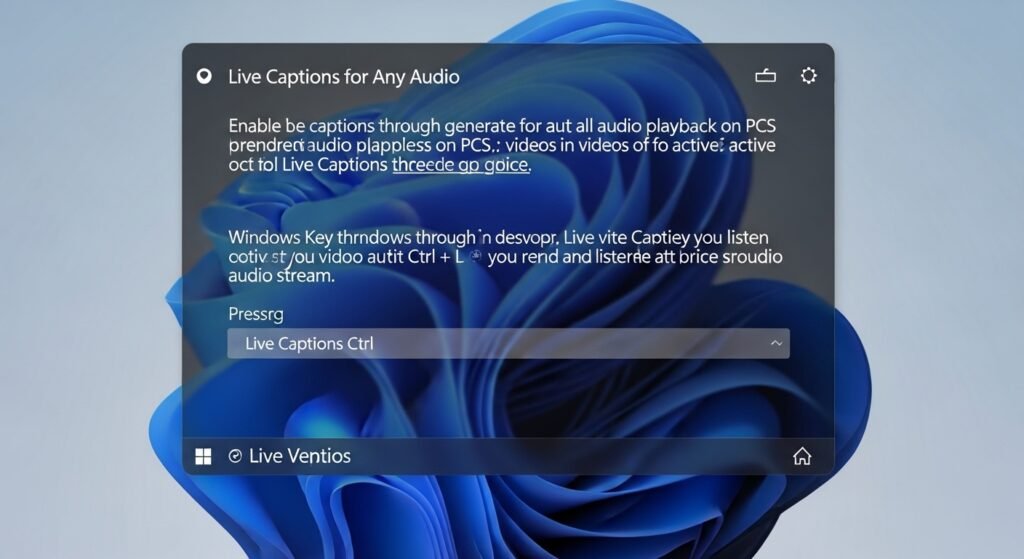
Windows 11 generates captions for all audio playback on PCs despite the presence of built-in captions in videos. Users can enable Live Captions through the system by pressing Windows Key together with Ctrl + L. The system displays text information on your screen which appears in real life while you watch videos and listen to active audio streams.
Shake to Minimize
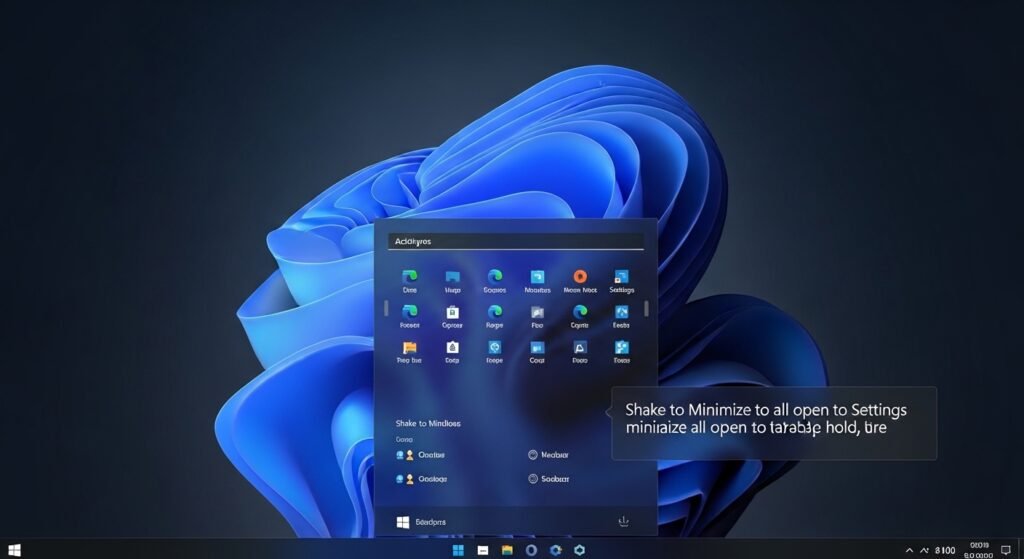
The system contains a hidden function which needs activation through the Settings menu to access its previous version features. Users can minimize all open windows to the taskbar by shaking the window title bar while holding it.
Efficiency Mode in Task Manager
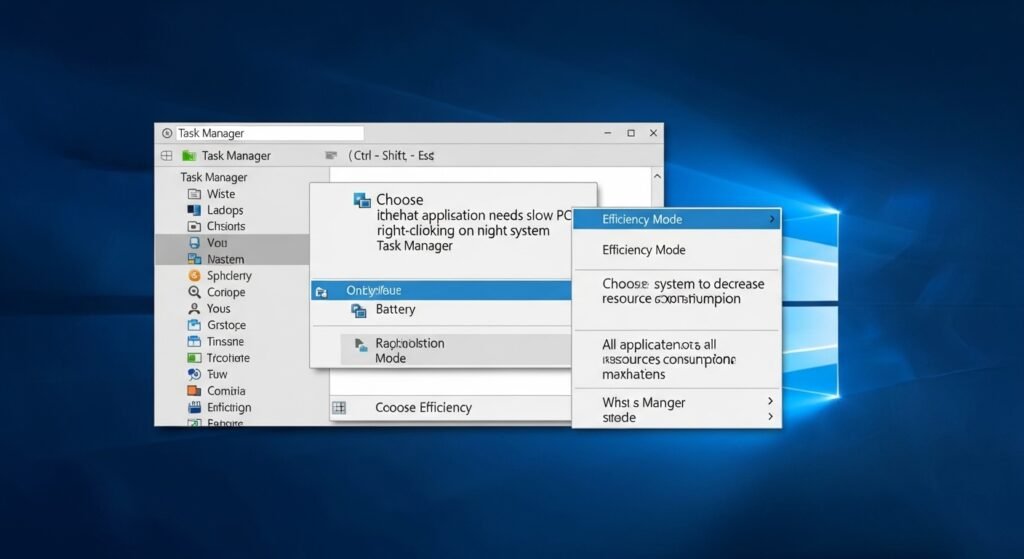
You can check your laptop battery status or slow PC performance through Task Manager access (Ctrl + Shift + Esc). Users can choose Efficiency Mode from the drop-down menu by right-clicking on any application which needs high system resources. The application compels the system to decrease its resource consumption which results in battery life extension while all applications continue running at maximum capacity.
Screen Recording without Third-Party Apps
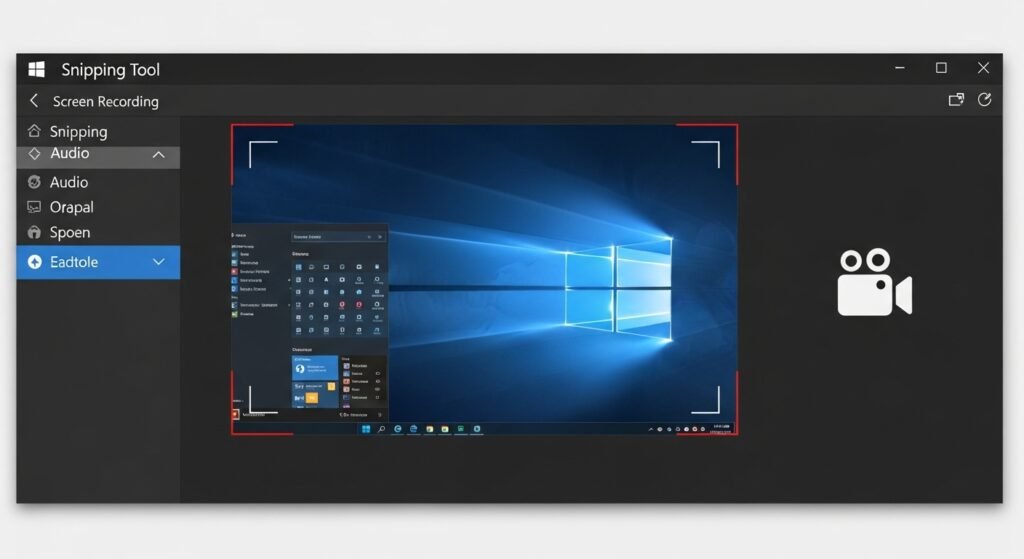
The Snipping Tool now enables users to record screens after they make image captures. The application displays a video camera icon, which users can access after they open the application. The system enables users to record audio while capturing a specific portion of their screen. Users can demonstrate computer tasks through the system without needing to install external software to their devices.
